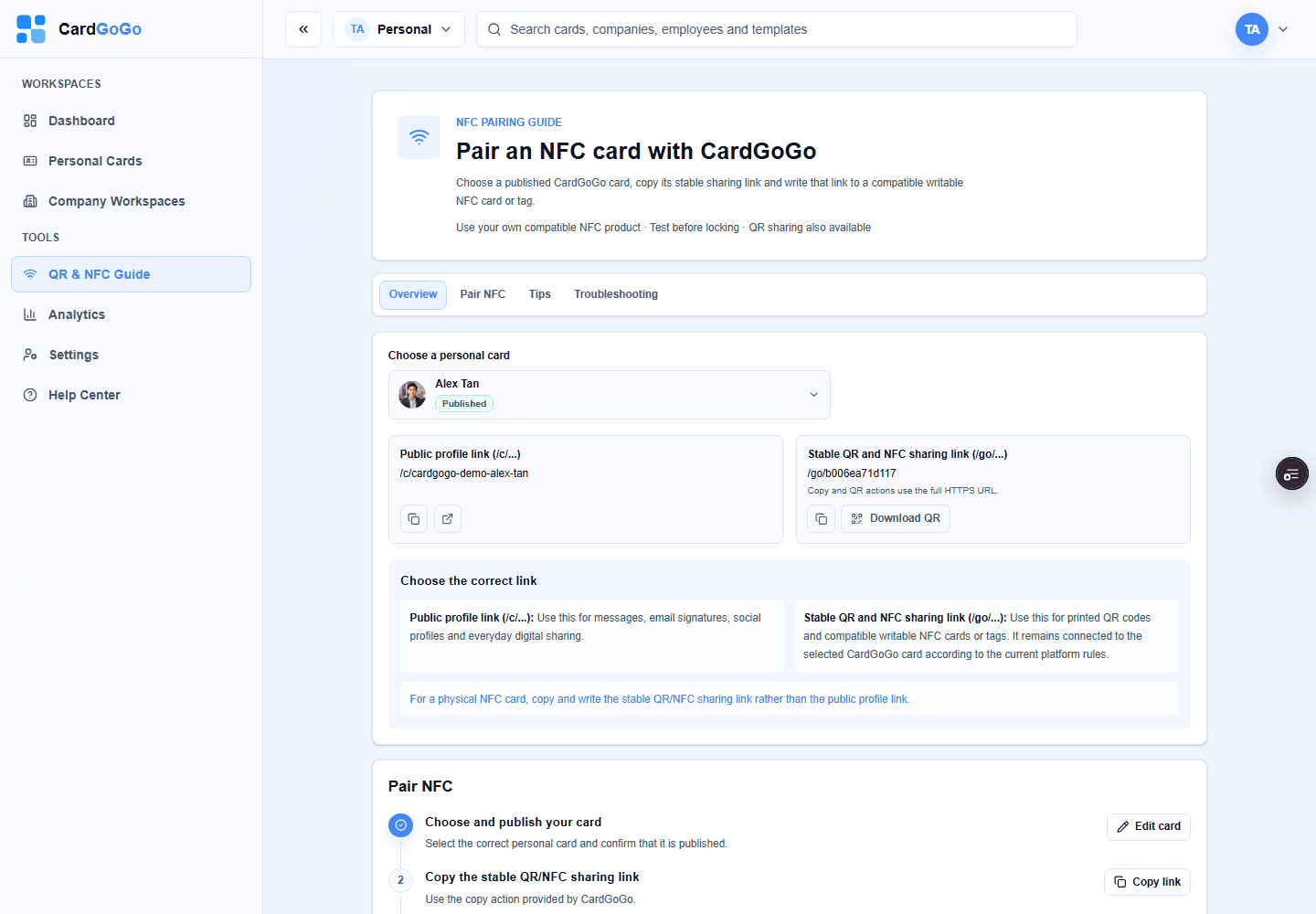
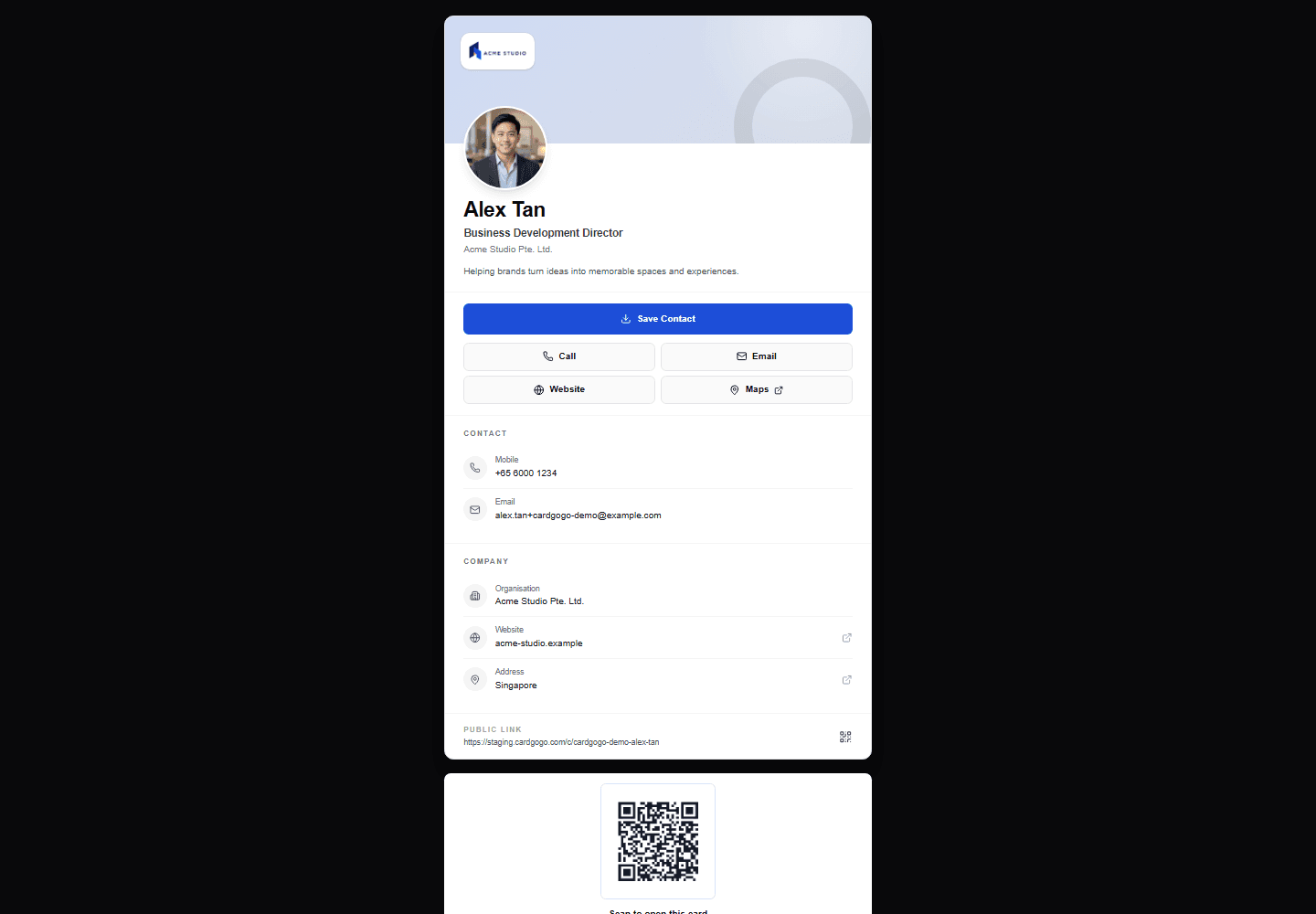
Publish your card, open its Links & QR controls or preview, then show the QR on screen or download it for printed and digital materials. Scanning opens the public card without requiring a CardGoGo account.
Find, display and download a CardGoGo QR code, then see the recipient open the public card
1
Step 1 of 6
Open your published card
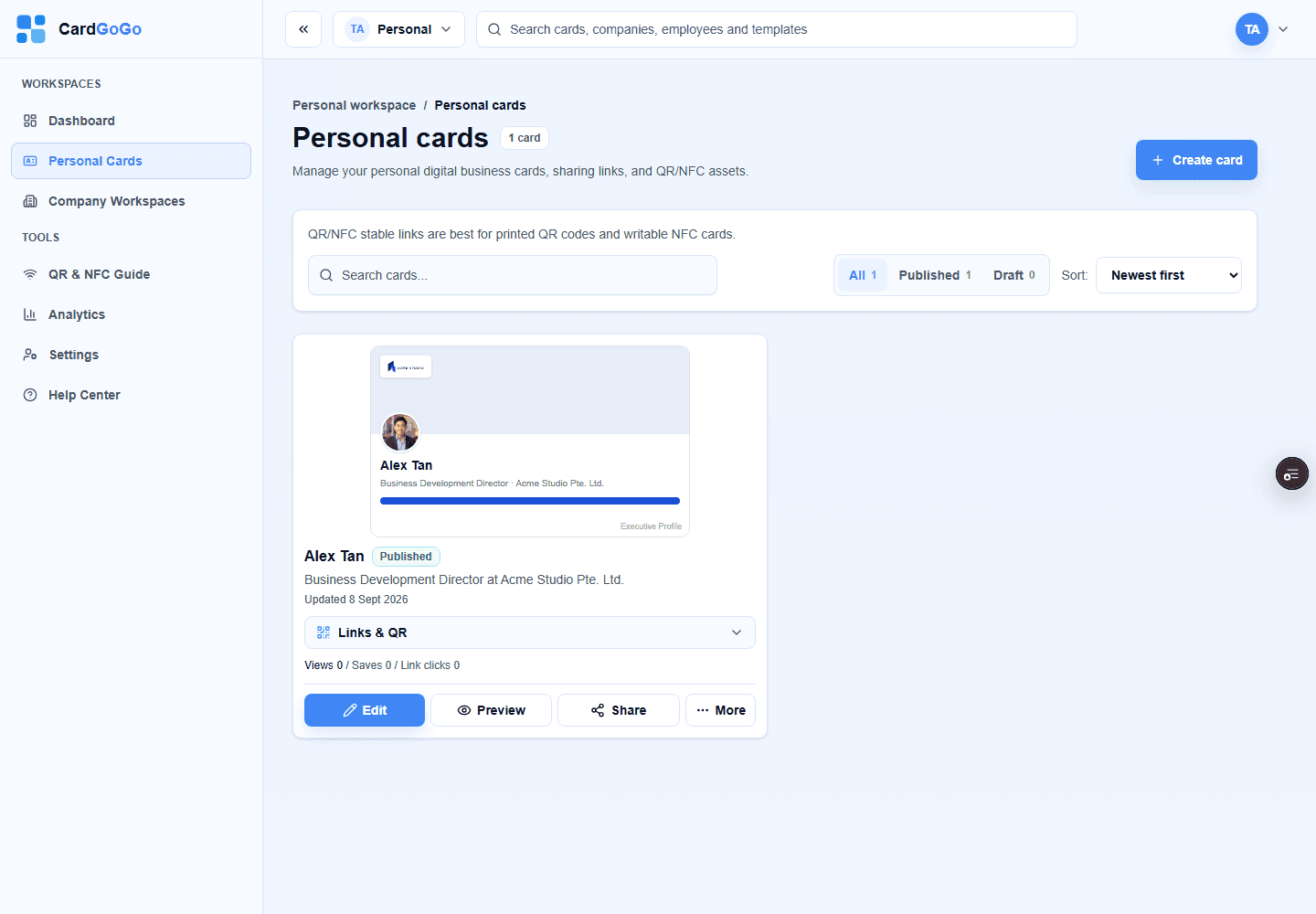
Open Personal Cards and find the published card whose QR code you want to use. QR controls become available after the card is published.
Start with the published card you want people to open.Open your cards
2
Step 2 of 6
Find your QR code
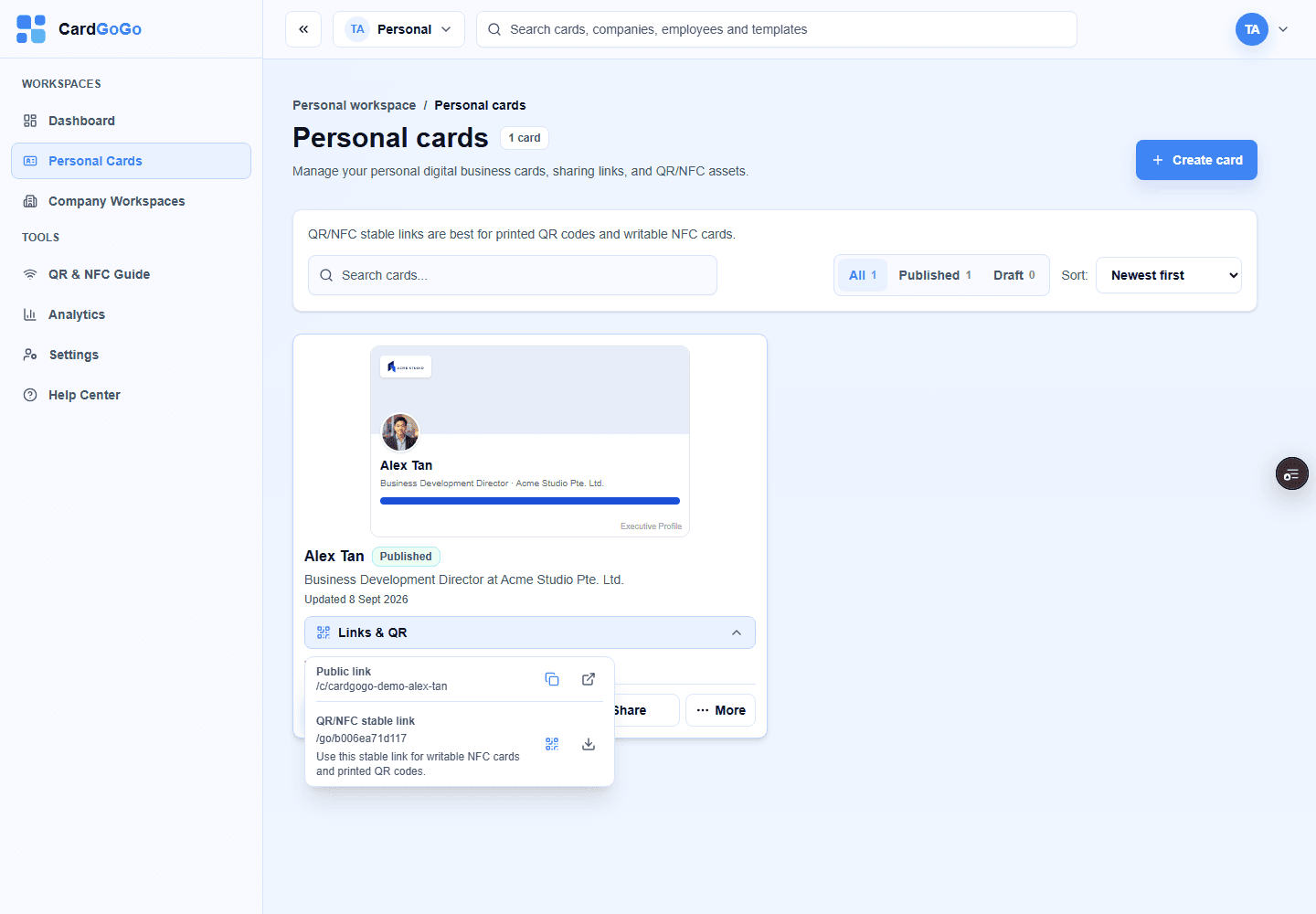
Open Links & QR for a quick download, or select Preview to display the QR code with the card's sharing controls.
Links & QR keeps the stable link and download action with the card.Open your cards
3
Step 3 of 6
Let someone scan it
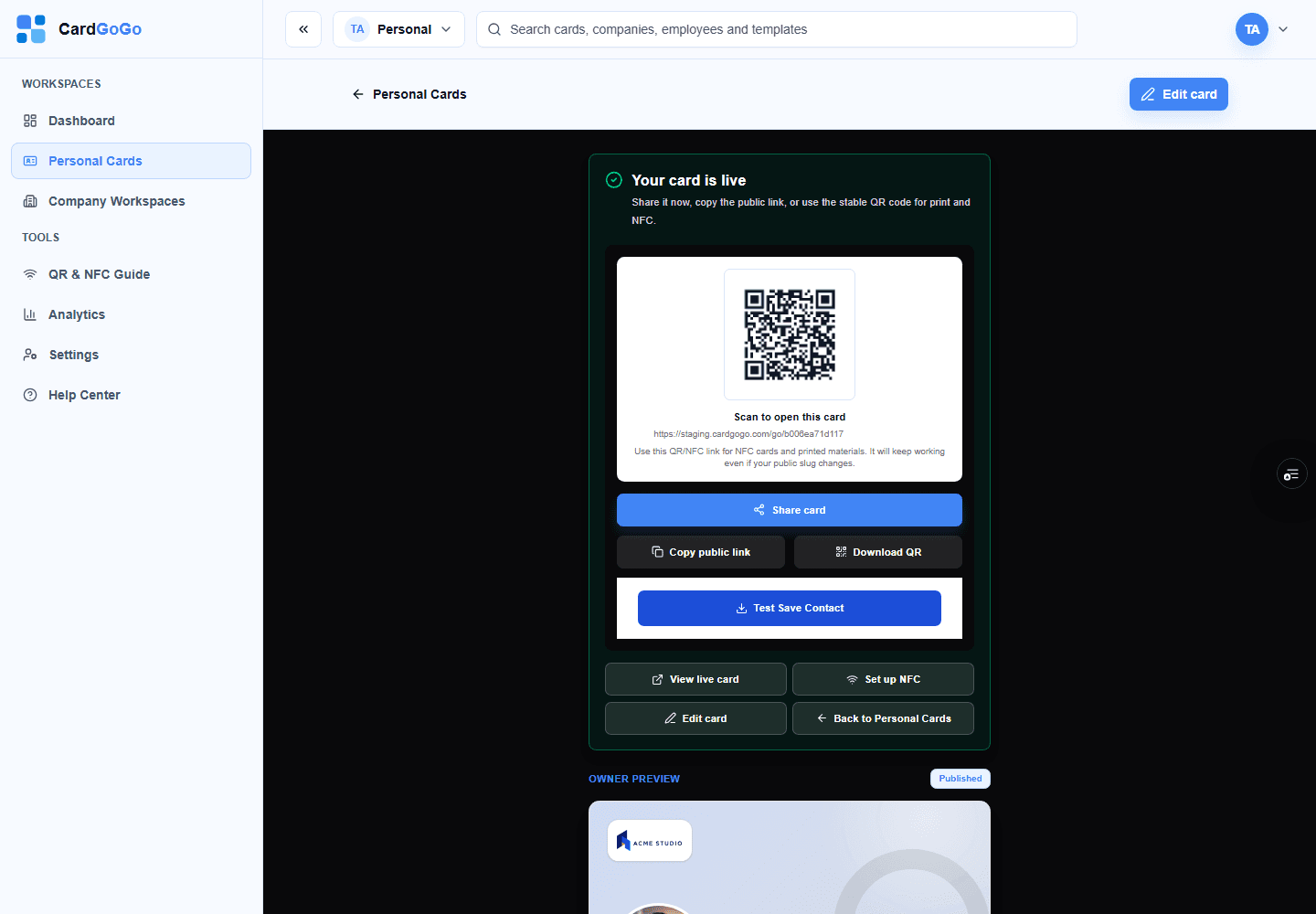
Show the on-screen QR code and ask the recipient to scan it with their phone camera or QR scanner. The QR uses the stable CardGoGo /go link for this card.
The recipient can scan the QR directly from your screen.Open your cards
4
Step 4 of 6
Download the QR image
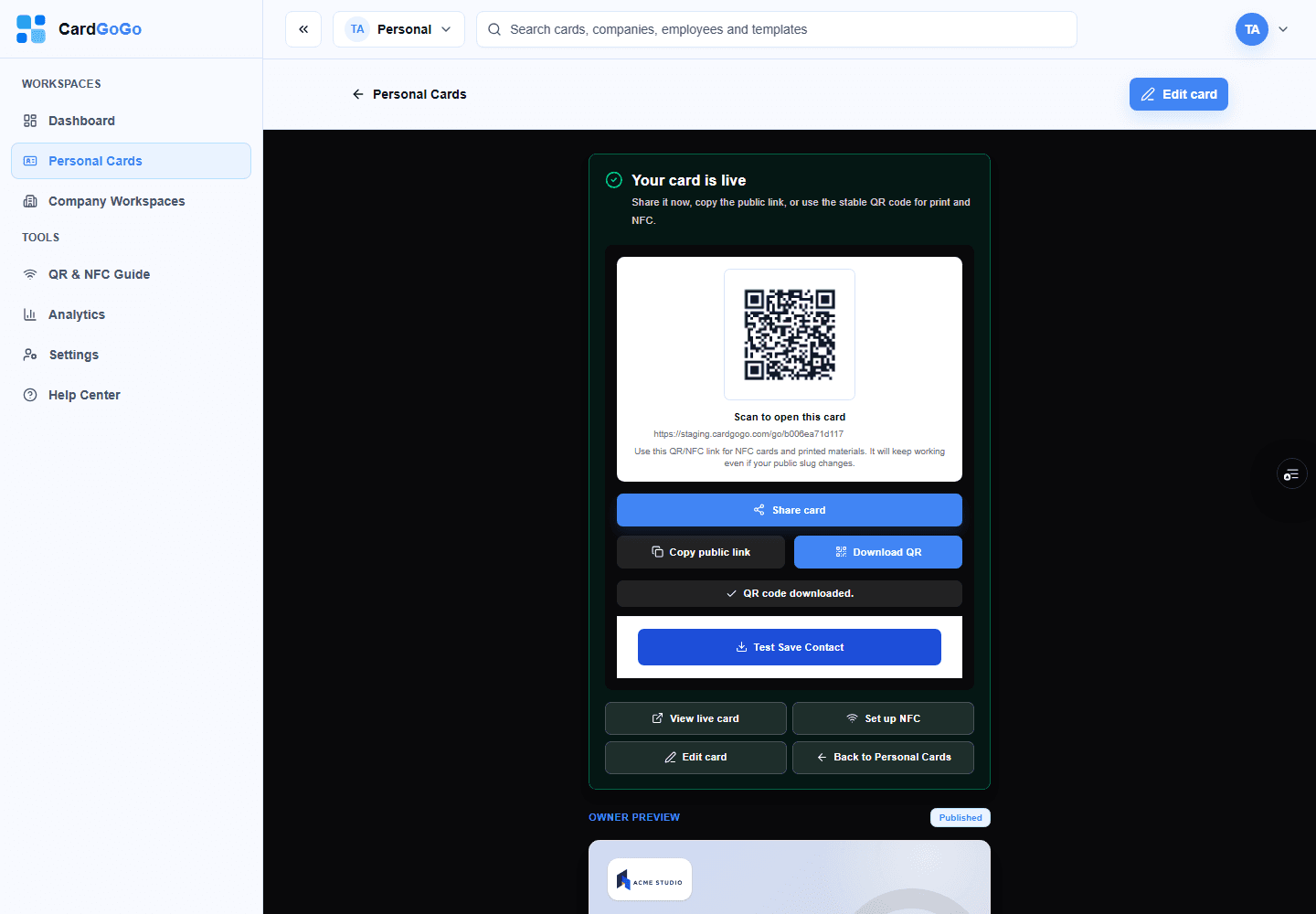
Select Download QR to save the QR code as a PNG image. Keep the image unchanged so it remains easy for phone cameras to scan.
Place the downloaded QR on a business card, poster, sign or other long-term material. For ordinary messages, email signatures and social profiles, you can also share the public profile link directly. Test the finished layout before distributing it.
Use the stable QR link for long-term materials and test the final result.Open the QR & NFC guide
6
Step 6 of 6
The recipient opens the card
Scanning the QR opens the published public card without requiring a CardGoGo account. The recipient can view the details and select Save Contact separately to download the contact file; scanning alone does not save it.
The QR opens the public card; saving the contact remains a separate choice.
Quick answers
Frequently asked questions
Does scanning the QR automatically save my contact?
No. Scanning opens your published public card. The recipient must select Save Contact and complete their device's prompts separately.View step
Can I print my CardGoGo QR code?
Yes. Download the QR image, place it at a clear readable size and test the finished print with more than one phone where practical.View step
Can I put the QR code on a poster or email signature?
Yes. The downloaded QR can be used on printed or digital materials. Test it at the final displayed size; for email signatures, a direct public profile link may also be simpler for recipients to select.View step
Does the person scanning need a CardGoGo account?
No. Anyone who scans the QR can open a currently published public card without signing in.View step
Where are QR codes for company staff cards?
Company owners and admins manage QR codes for published staff cards from the company workspace's QR & NFC area. Draft cards are not QR-ready, and archived workspaces do not expose staff cards through existing QR links.View step