Create your first digital business card
Open your Personal dashboard, create a card, add your details, preview it, then publish it to receive a shareable link and QR code.
9 steps
In this guide
Watch the walkthrough
- 1
Step 1 of 9
Open your Personal dashboard
Sign in and choose Create card.
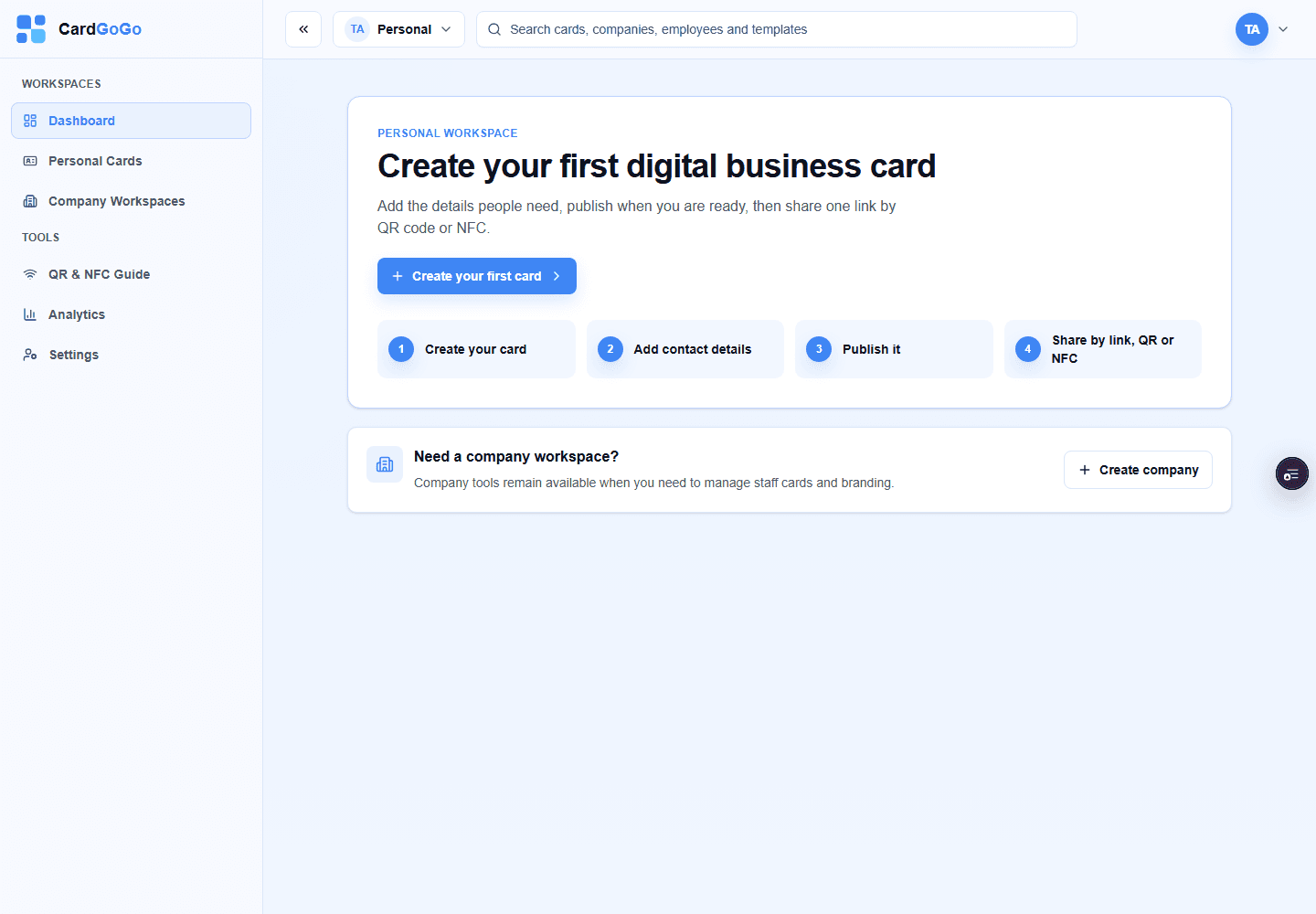
Start from your Personal dashboard. - 2
Step 2 of 9
Start a new card
Select Create card to open the Personal card editor.
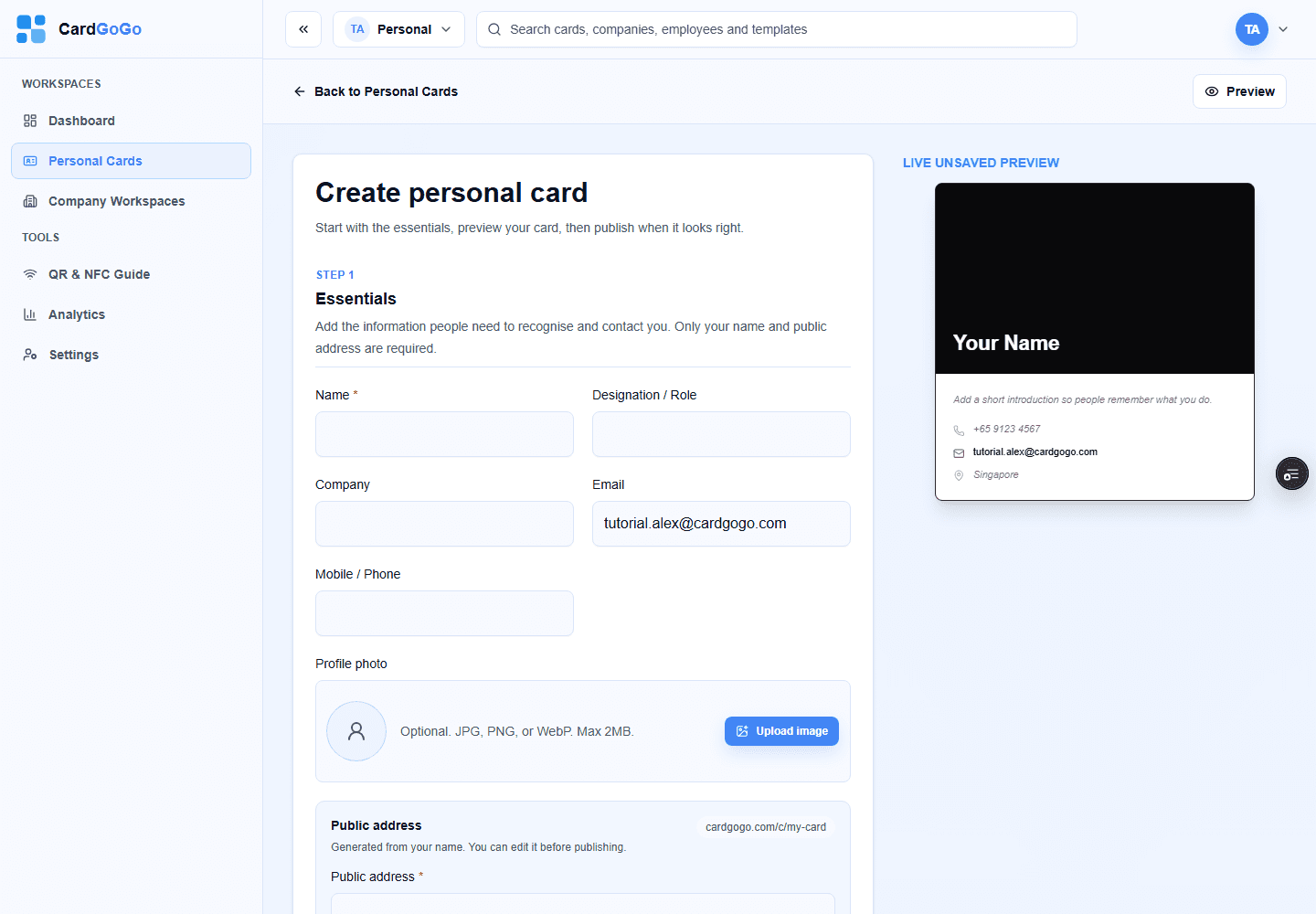
Add the essentials first; optional details can wait. - 3
Step 3 of 9
Add your essential details
Add your professional details, portrait, bio, website, location and company logo.
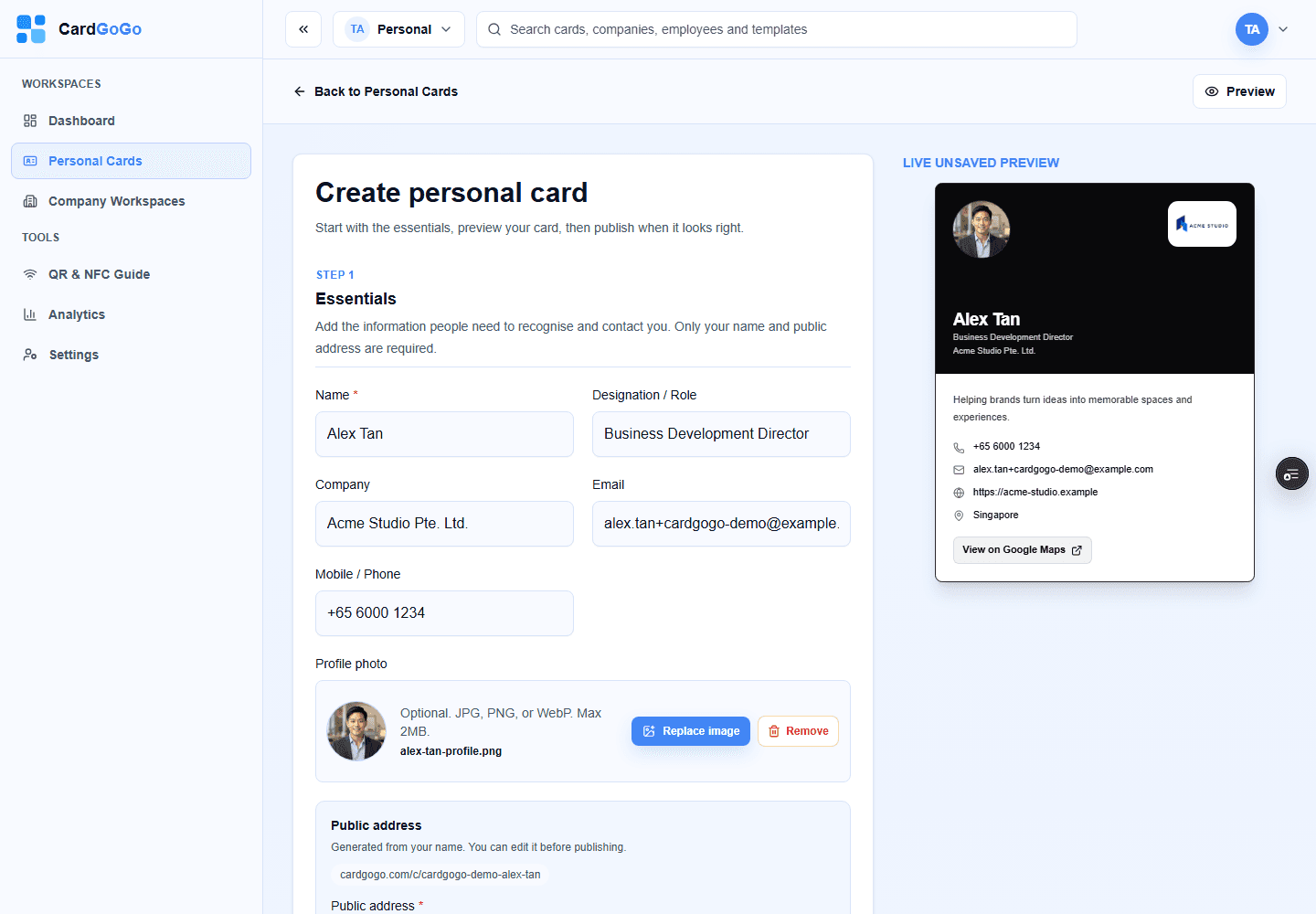
Complete the details recipients need most. - 4
Step 4 of 9
Choose a template
Open Design and choose a template while checking the live preview.
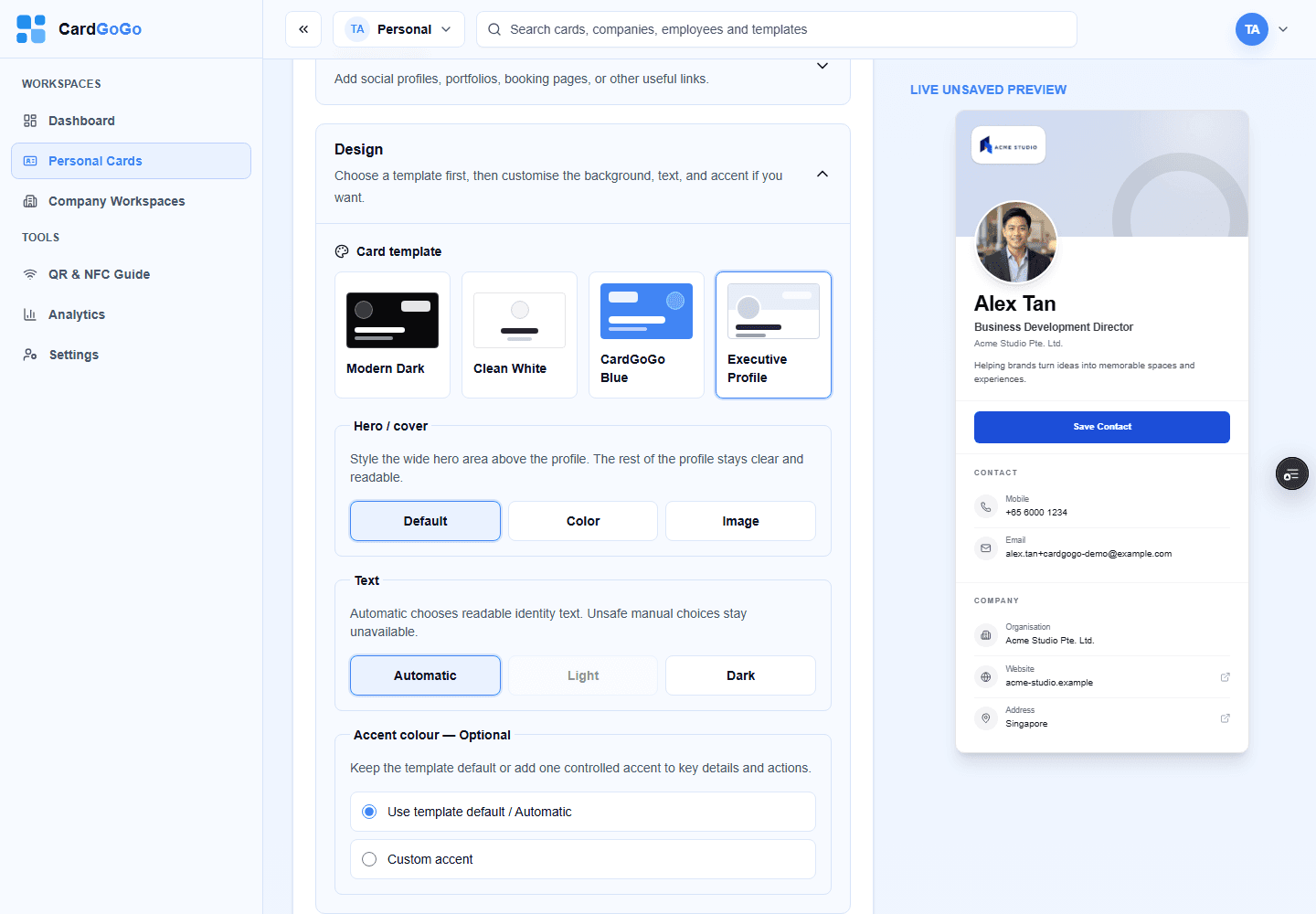
Choose a template that suits your identity. - 5
Step 5 of 9
Preview your card
Select Preview and check how the card will look to recipients.
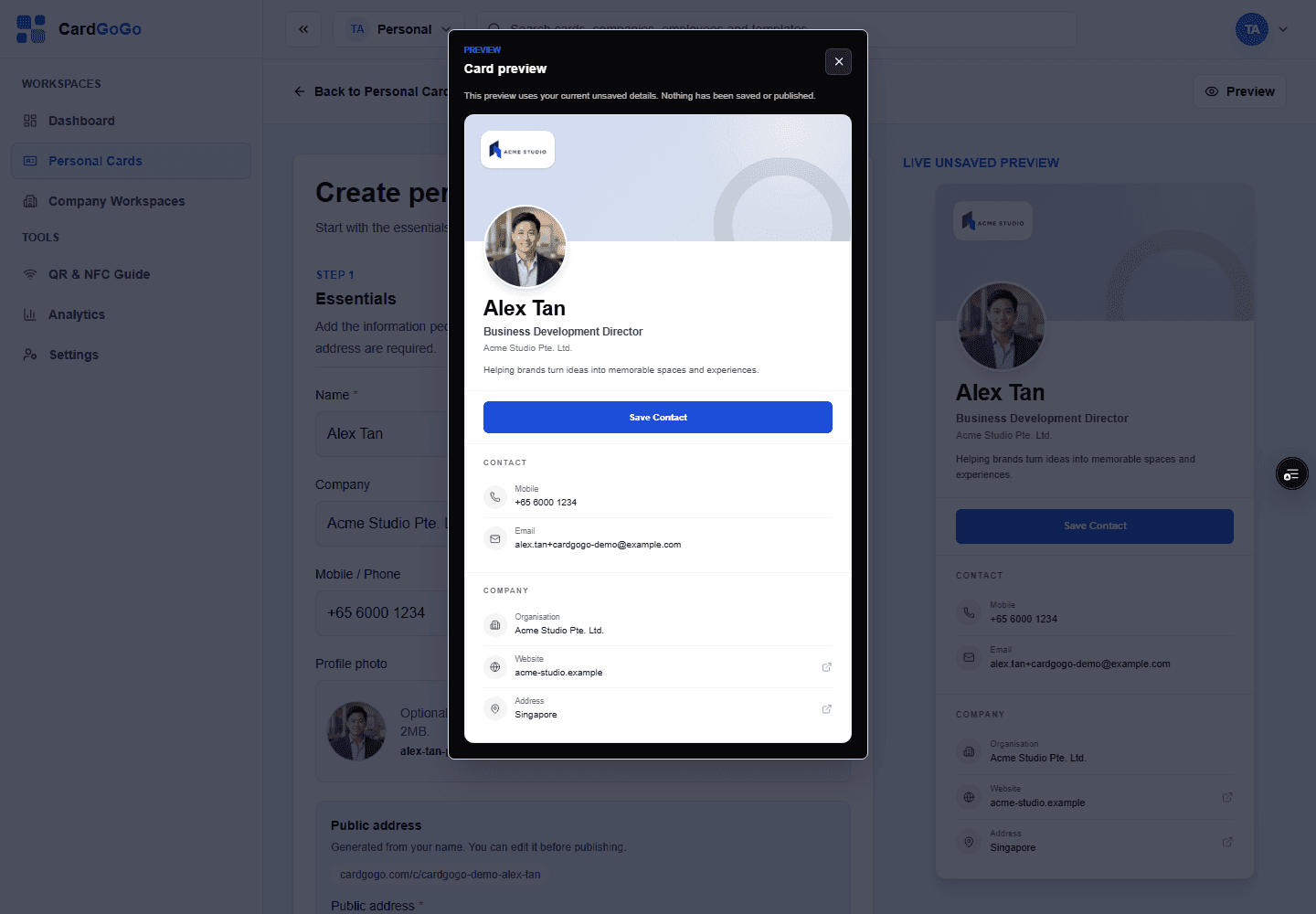
Preview your card before saving. - 6
Step 6 of 9
Save a draft
Save the card as a private draft while you review it.
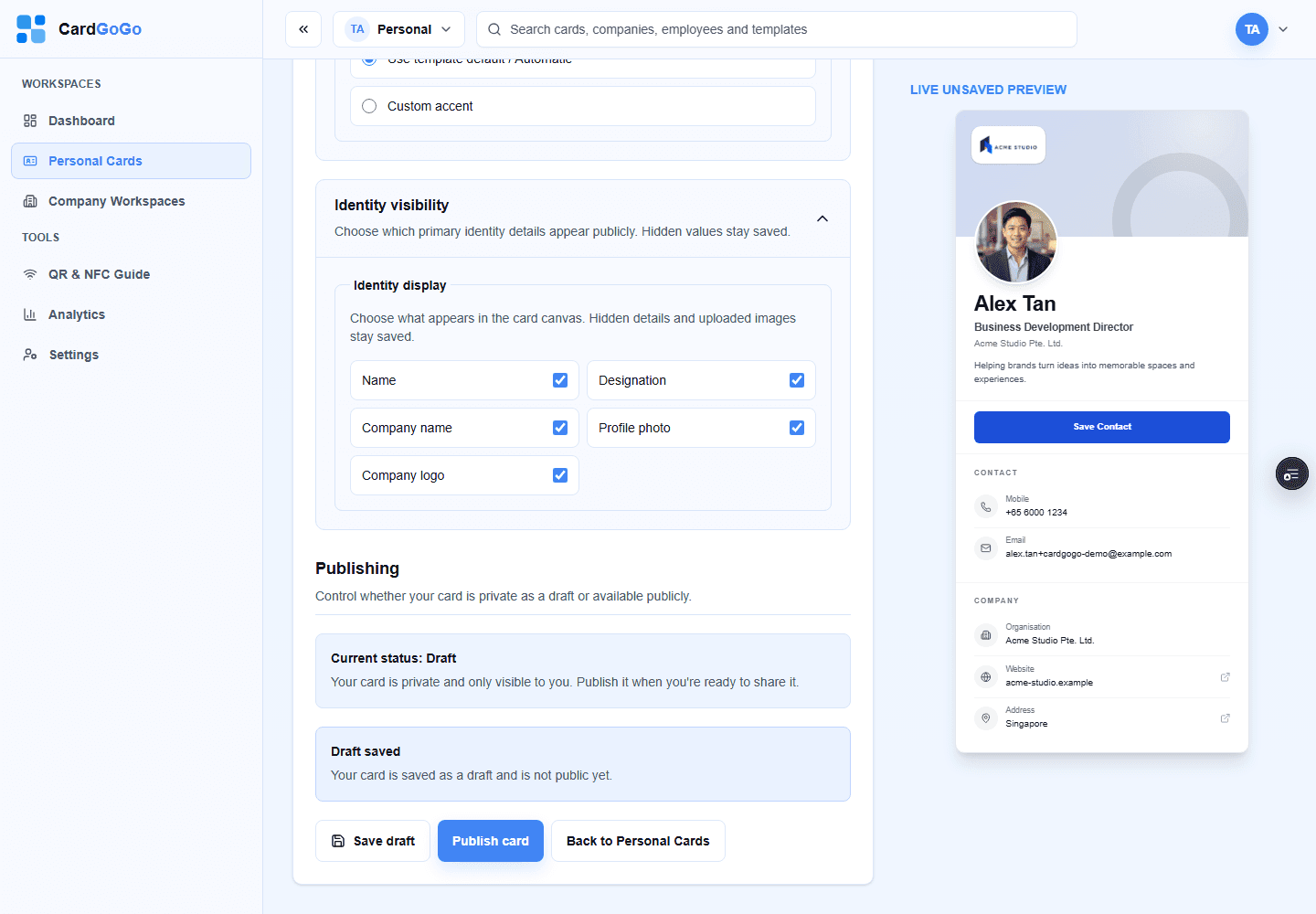
Save a private draft while you review the card. - 7
Step 7 of 9
Publish your card
Select Publish card to make the card available at its public address.
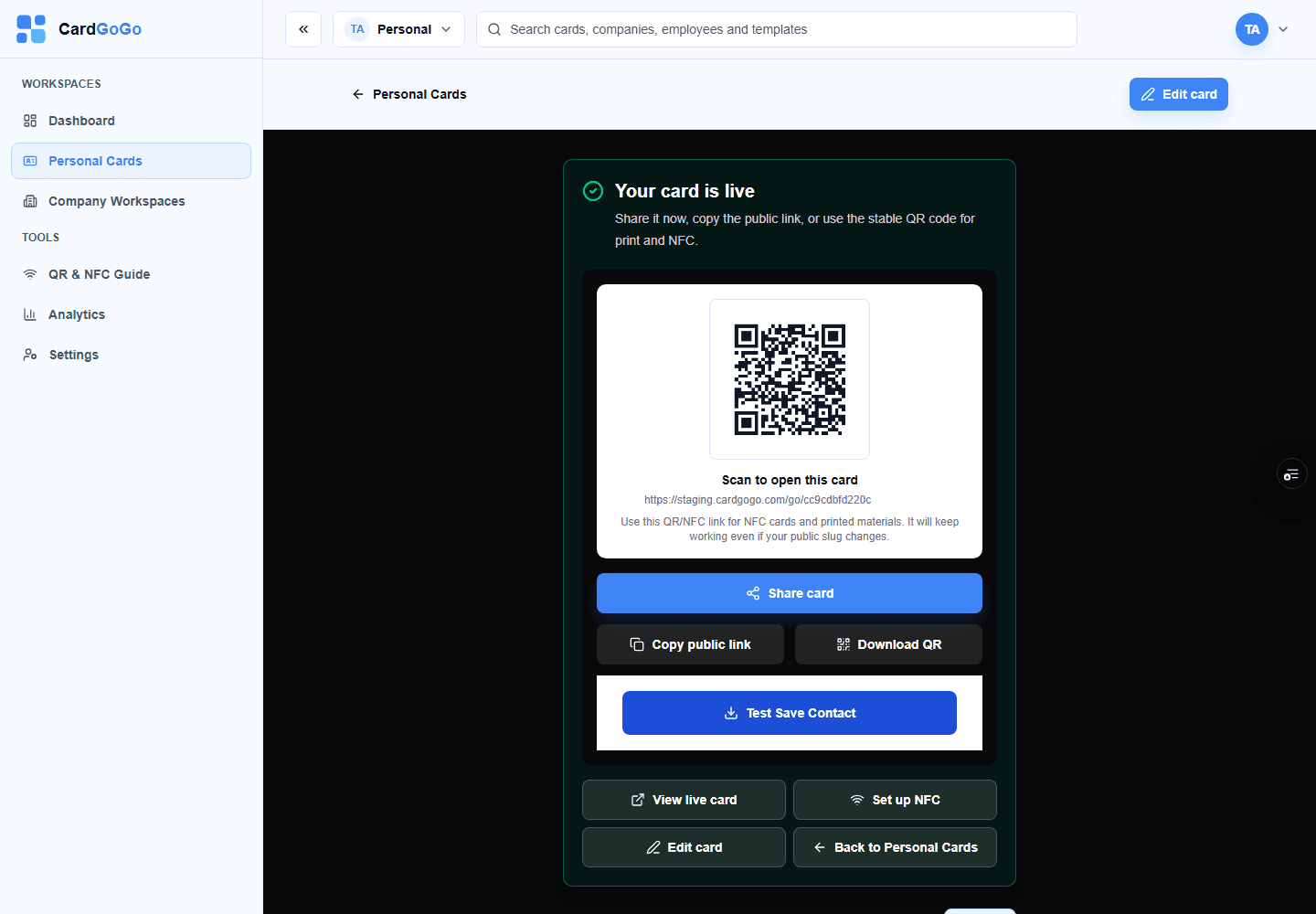
Publish when your card is ready to share. - 8
Step 8 of 9
Open the public card
Select View live card and review the experience your recipients will see.
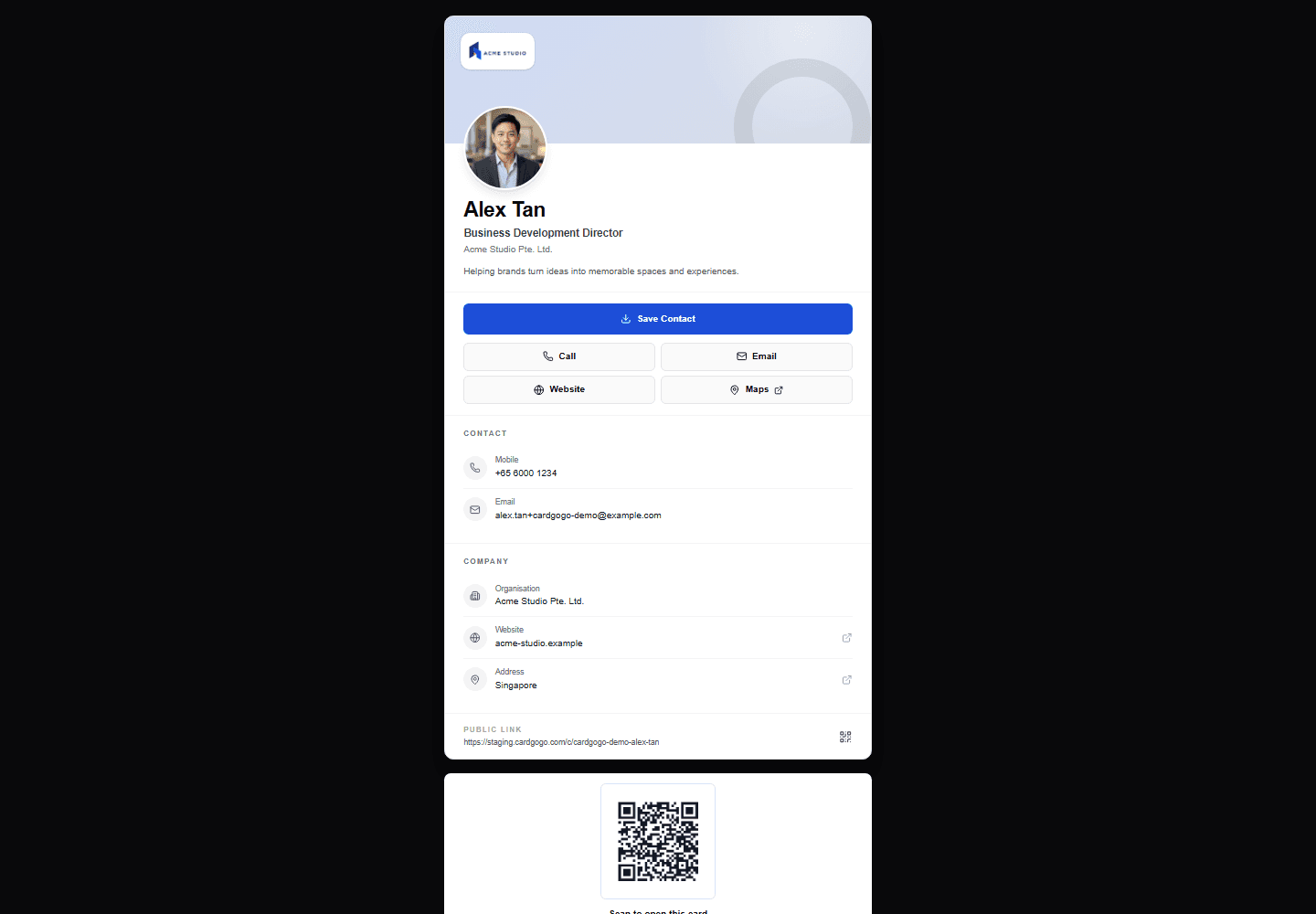
This is what recipients see when they open your link. - 9
Step 9 of 9
Save or share the contact
Recipients can select Save Contact or share the card link.
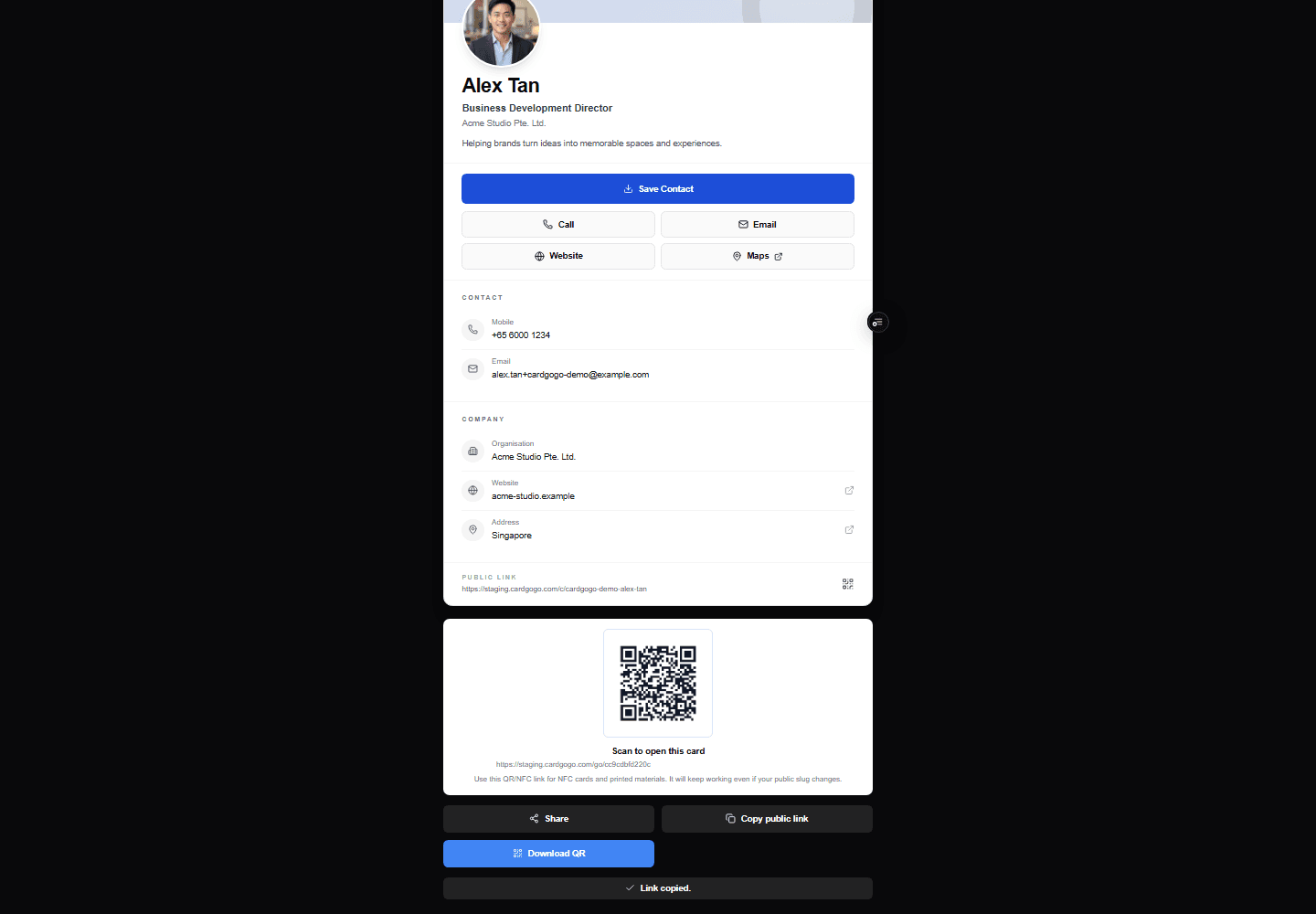
Save the contact or pass the card along in a few taps.
Quick answers
Frequently asked questions
- How do I create my first digital business card?
- Open your Personal dashboard, create a card, add your details, preview it and publish it.View step
Learn more
Related CardGoGo resources
Understand digital business cards
See what a browser-based digital business card can include and how people use it.
View resourceExplore the free CardGoGo card
Review the free personal-card option before starting your first card.
View resourceBrowse digital card templates
Compare CardGoGo layouts before choosing the look of your card.
View resourceRelated guides
Share your digital business card
Open a published card, then use Share, copy its public link or show its QR code. Recipients can open the card without signing in and choose Save Contact separately.
Read guideUse your CardGoGo QR code
Publish your card, open its Links & QR controls or preview, then show the QR on screen or download it for printed and digital materials. Scanning opens the public card without requiring a CardGoGo account.
Read guide