Open a published card, then use Share, copy its public link or show its QR code. Recipients can open the card without signing in and choose Save Contact separately.
Share a published CardGoGo card by link or QR and show a recipient how to save the contact
1
Step 1 of 6
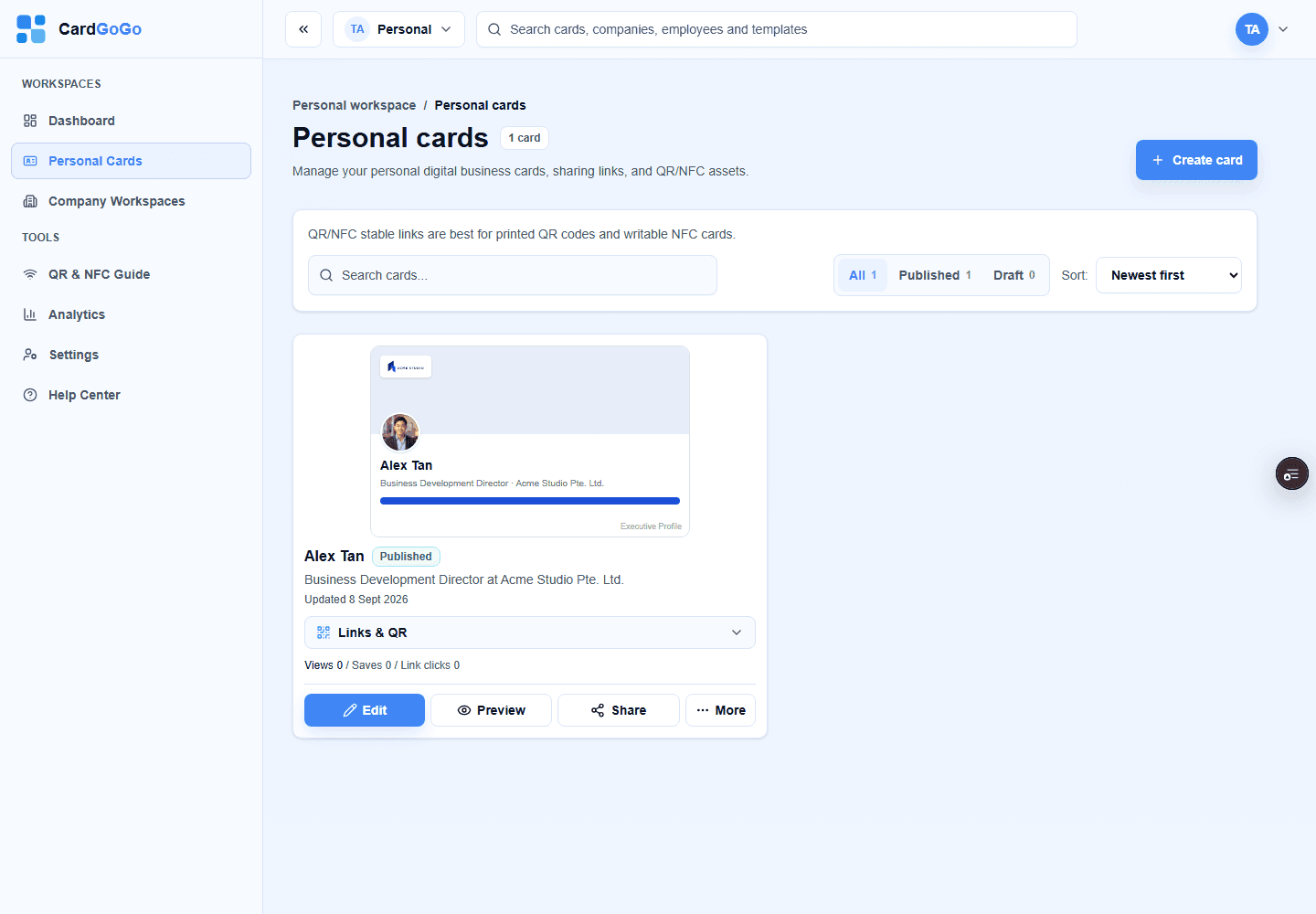
Open your published card
Open Personal Cards and select Preview for the published card you want to share.
Start with the published card you want to share.Open your cards
2
Step 2 of 6
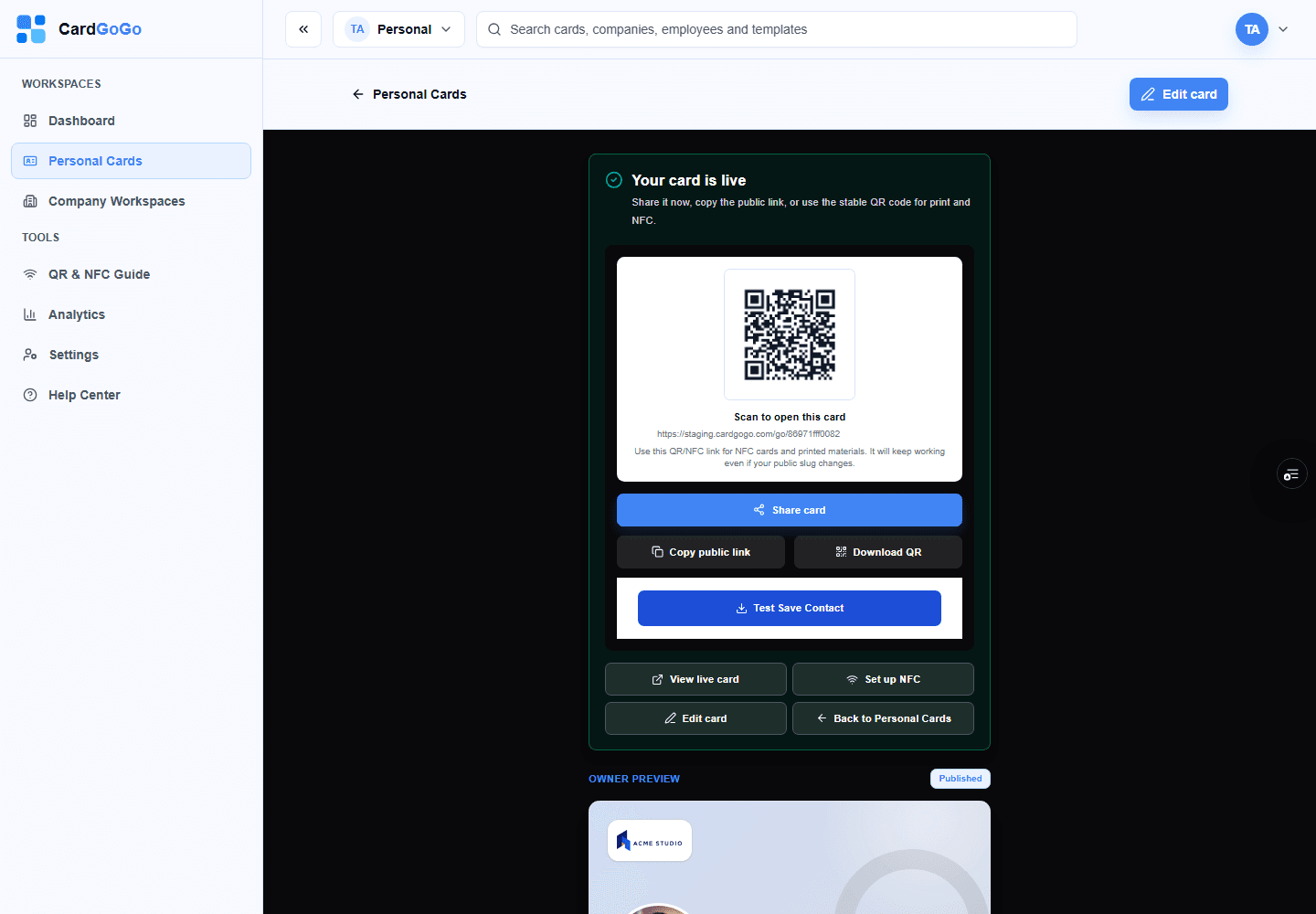
Choose how to share
Use Share card, Copy public link or the QR code. On supported devices, Share card opens the device's sharing choices; otherwise it copies the link.
Choose the sharing method that suits the moment.Open your cards
3
Step 3 of 6
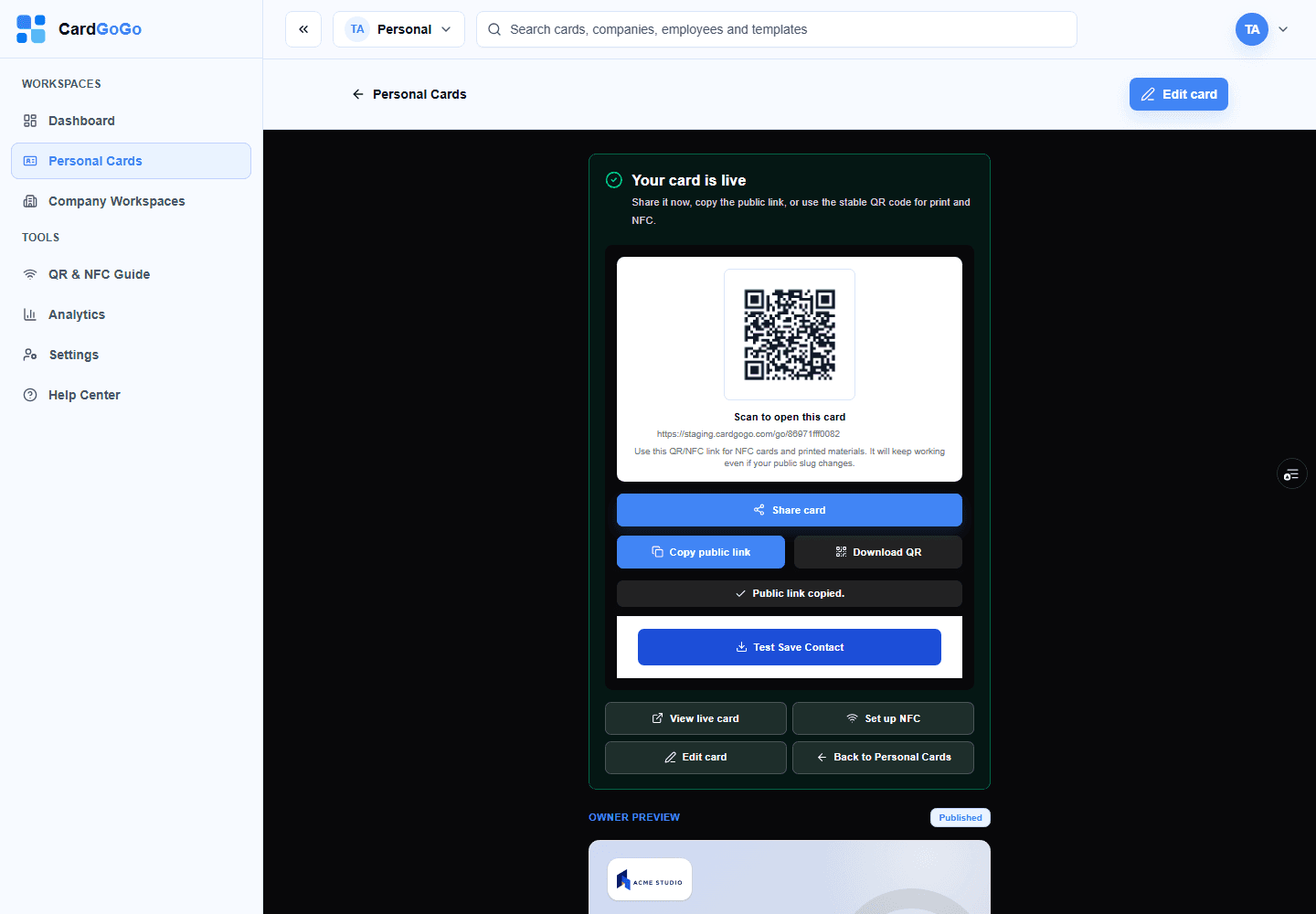
Copy and send the public link
Select Copy public link, then paste the link into the message or app you choose.
Copy the public link and send it through any messaging app.Open your cards
4
Step 4 of 6
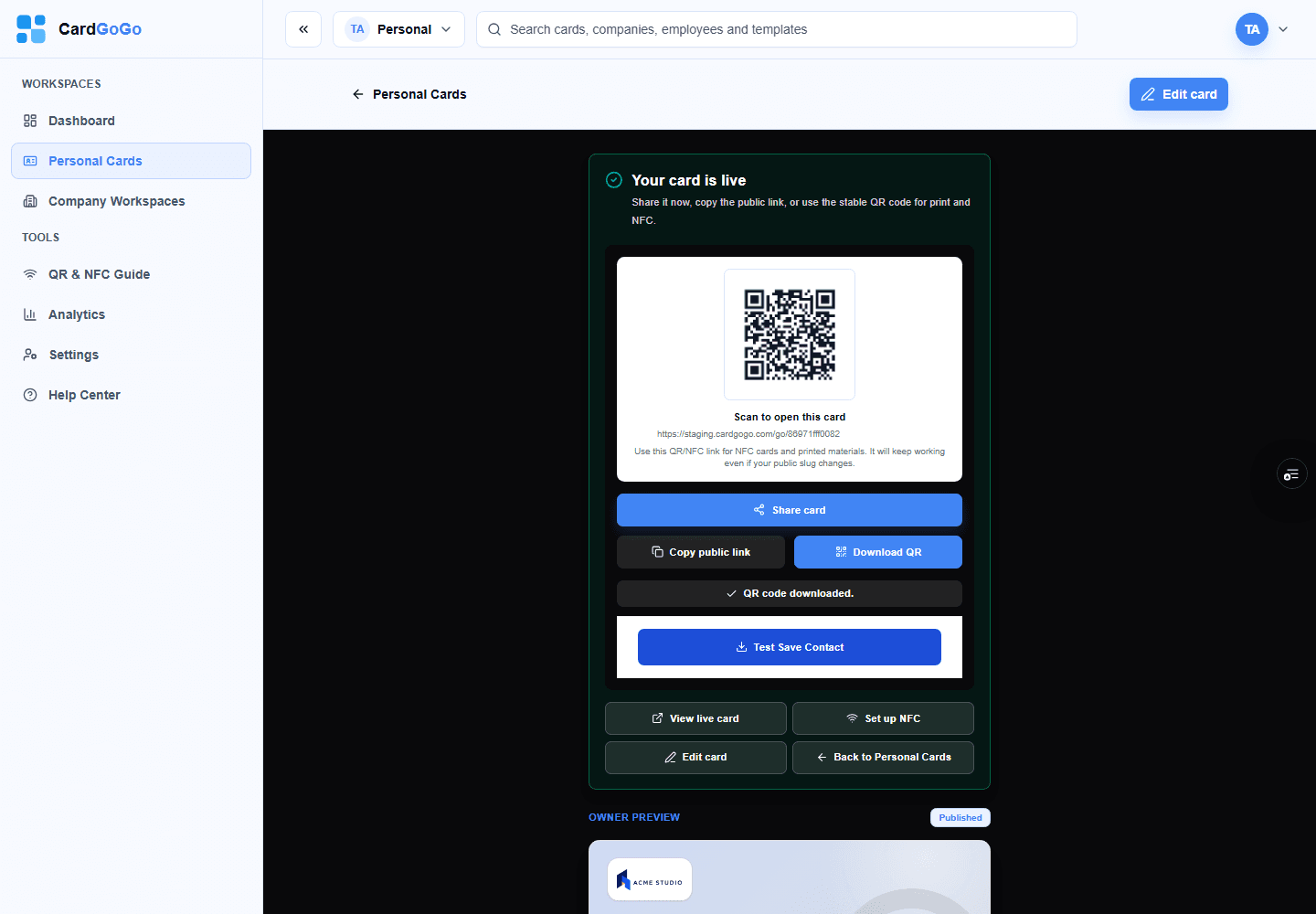
Show or download the QR code
Let someone scan the QR code from your screen, or select Download QR to save the image for printed or digital use.
Show the QR code on screen or download it for later use.Open your cards
5
Step 5 of 6
The recipient opens your card
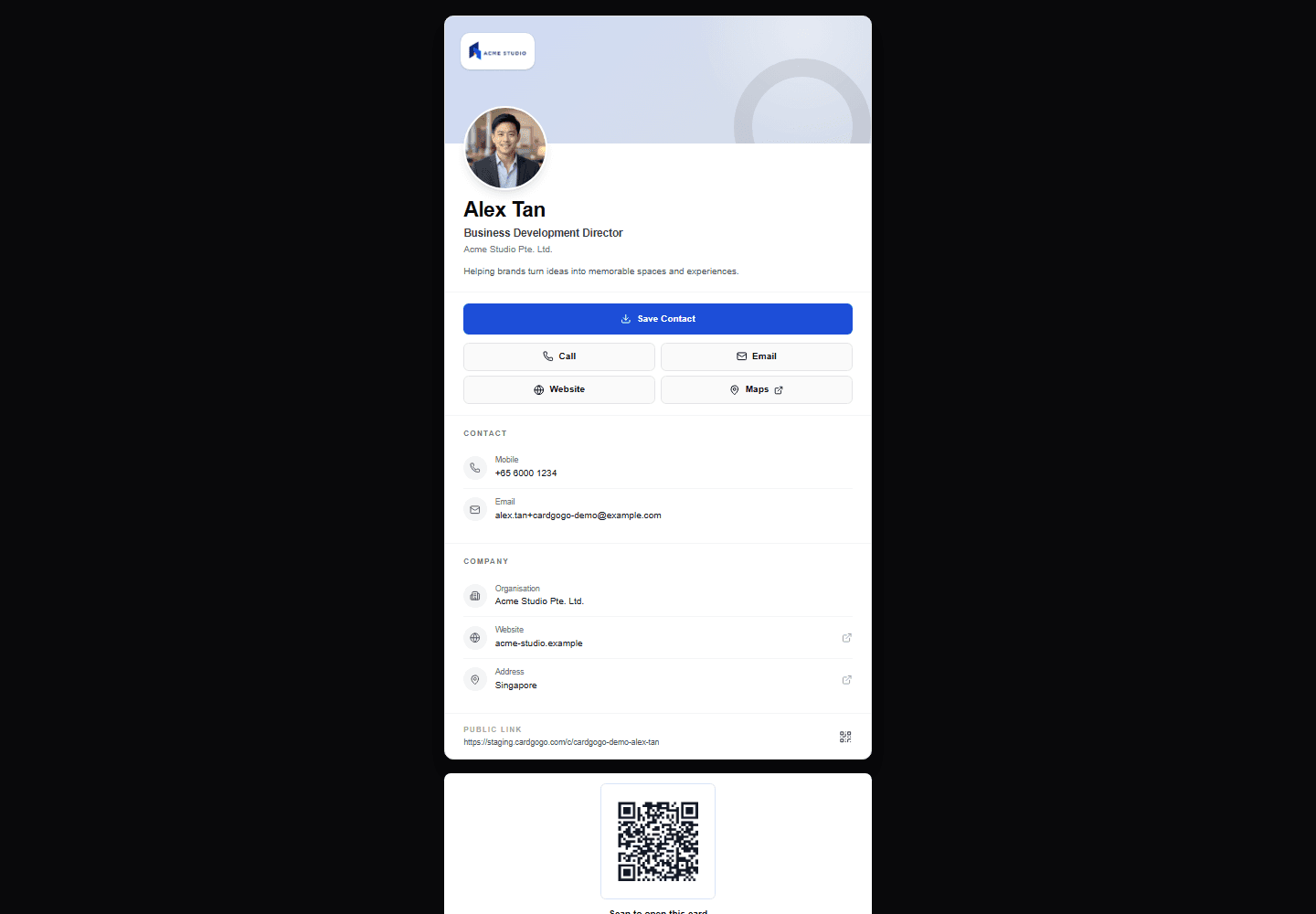
The link or QR code opens your public CardGoGo card. The recipient can view your details without signing in and use the available Call, Email, Website or Maps actions.
Recipients see your published card and its contact actions.
6
Step 6 of 6
The recipient saves your contact
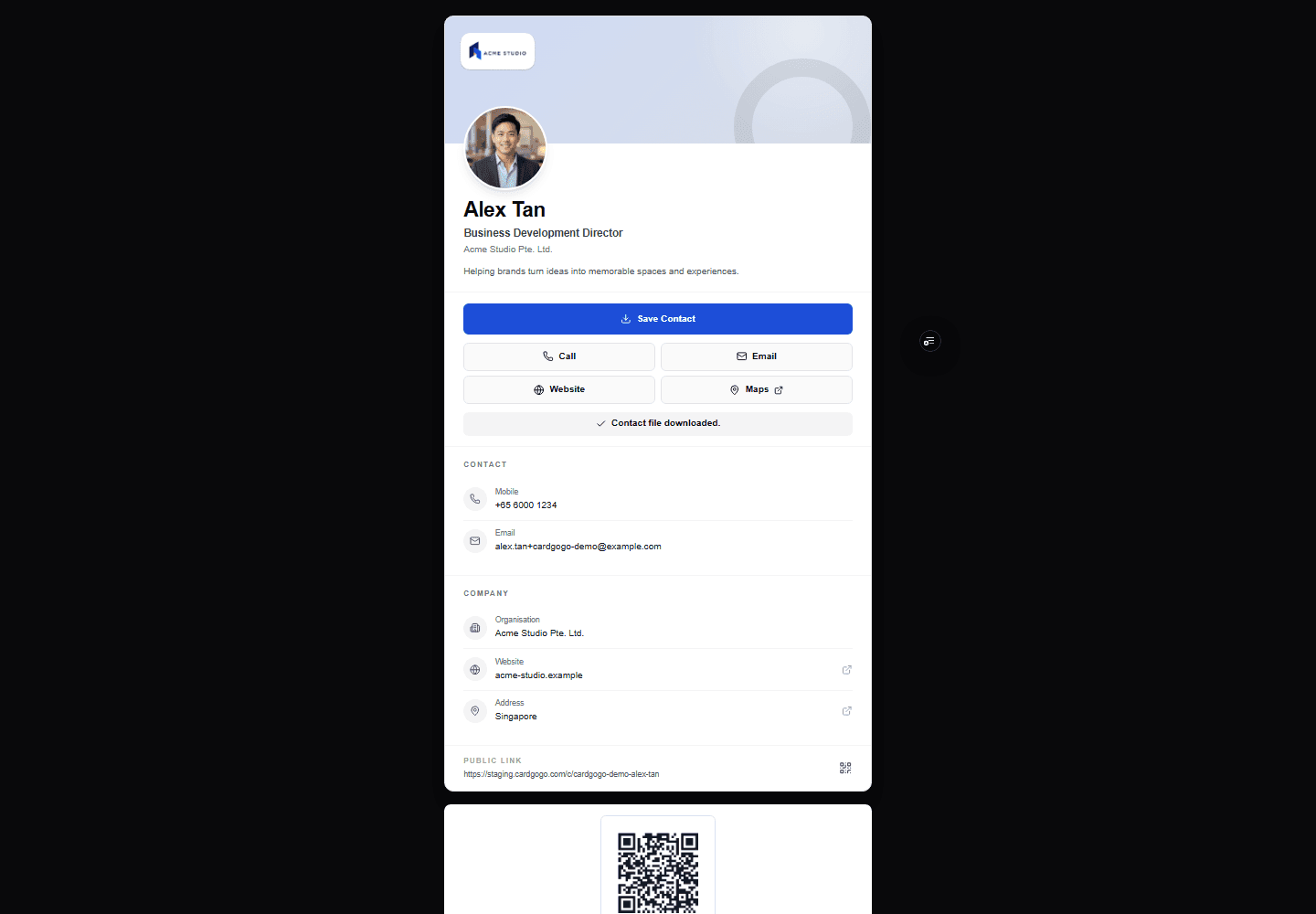
The recipient selects Save Contact to download a contact file, then follows their device's prompts to add it. Opening the card does not save it automatically.
Saving is a separate action controlled by the recipient.
Quick answers
Frequently asked questions
Does someone need a CardGoGo account to open my card?
No. Anyone with the link or QR code can open a published public card without signing in.View step
Does opening my card automatically save my contact?
No. The recipient must select Save Contact and complete the prompts on their device.View step
Can I share my card through WhatsApp or another messaging app?
Yes. Use Share card on a supported device and choose an available app, or copy the public link and paste it into your message.View step
Can I share my card with a QR code?
Yes. Let someone scan the QR code on screen or download the QR image to use elsewhere.View step