Save a CardGoGo contact
Open a published CardGoGo card and select Save Contact to download its vCard (.vcf) file. Then open that file and follow your device's prompts to add the details to your contacts.
4 steps
In this guide
Watch the walkthrough
- 1
Step 1 of 4
Open the shared card
Open the CardGoGo link or scan its QR code. A published public card opens without requiring you to sign in.
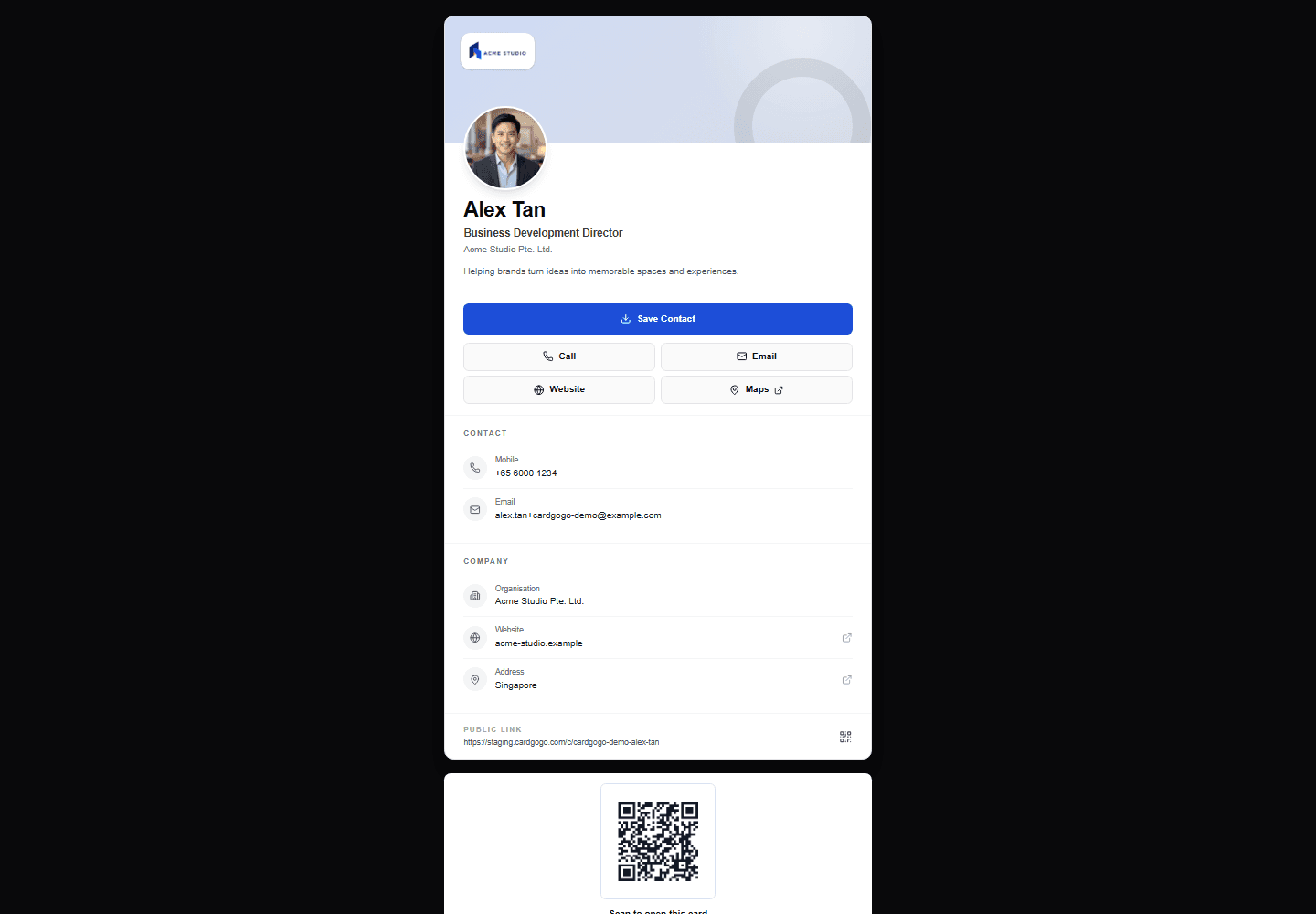
Open the published card from its link or QR code. - 2
Step 2 of 4
Review the contact details
Check the name, company and contact details shown on the card before saving them. The available details depend on what the card owner has published.
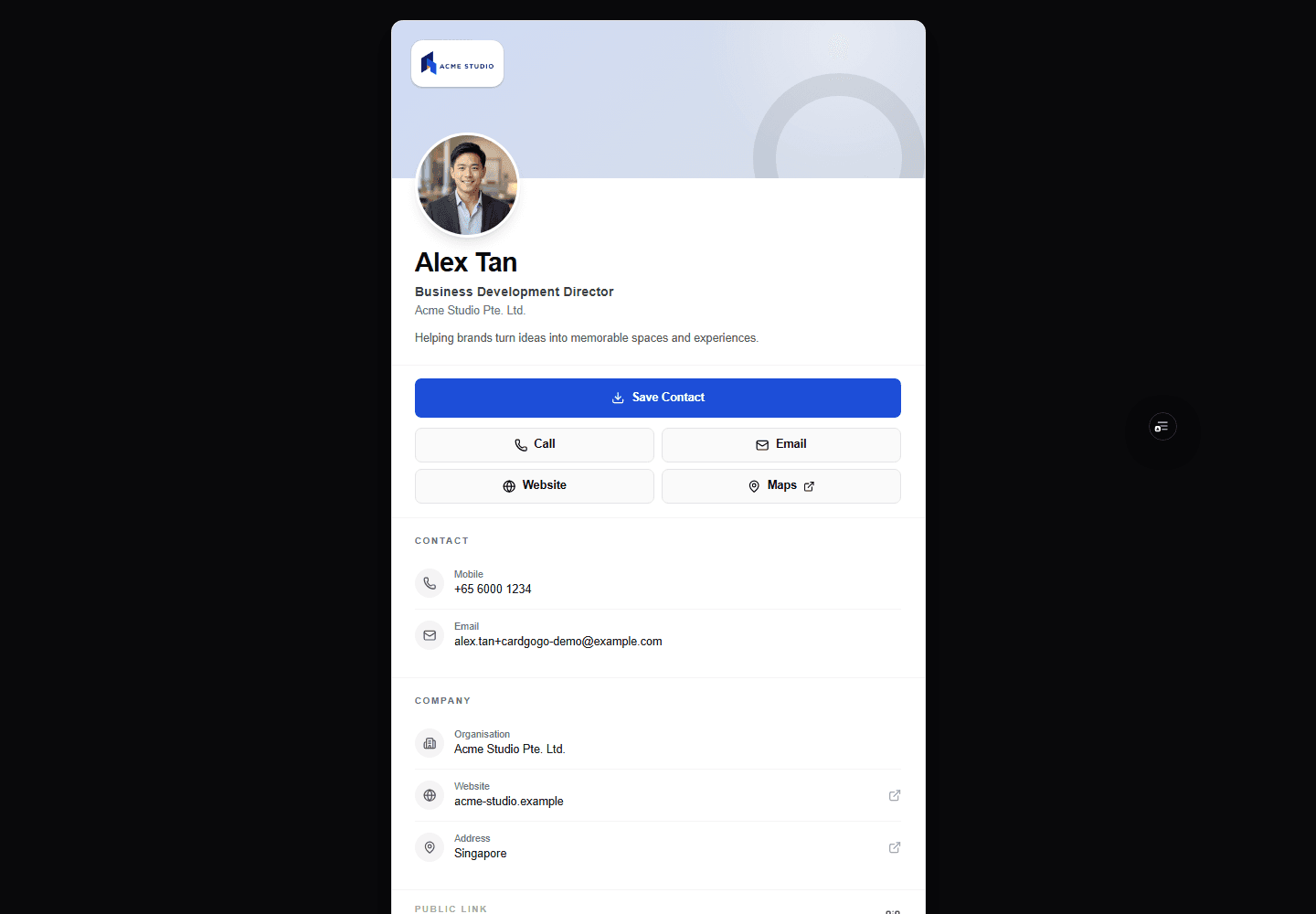
Review the published details before downloading the contact file. - 3
Step 3 of 4
Select Save Contact
Select Save Contact. CardGoGo generates and downloads a vCard file with the contact details supplied by the card owner; opening the card alone never saves anything.
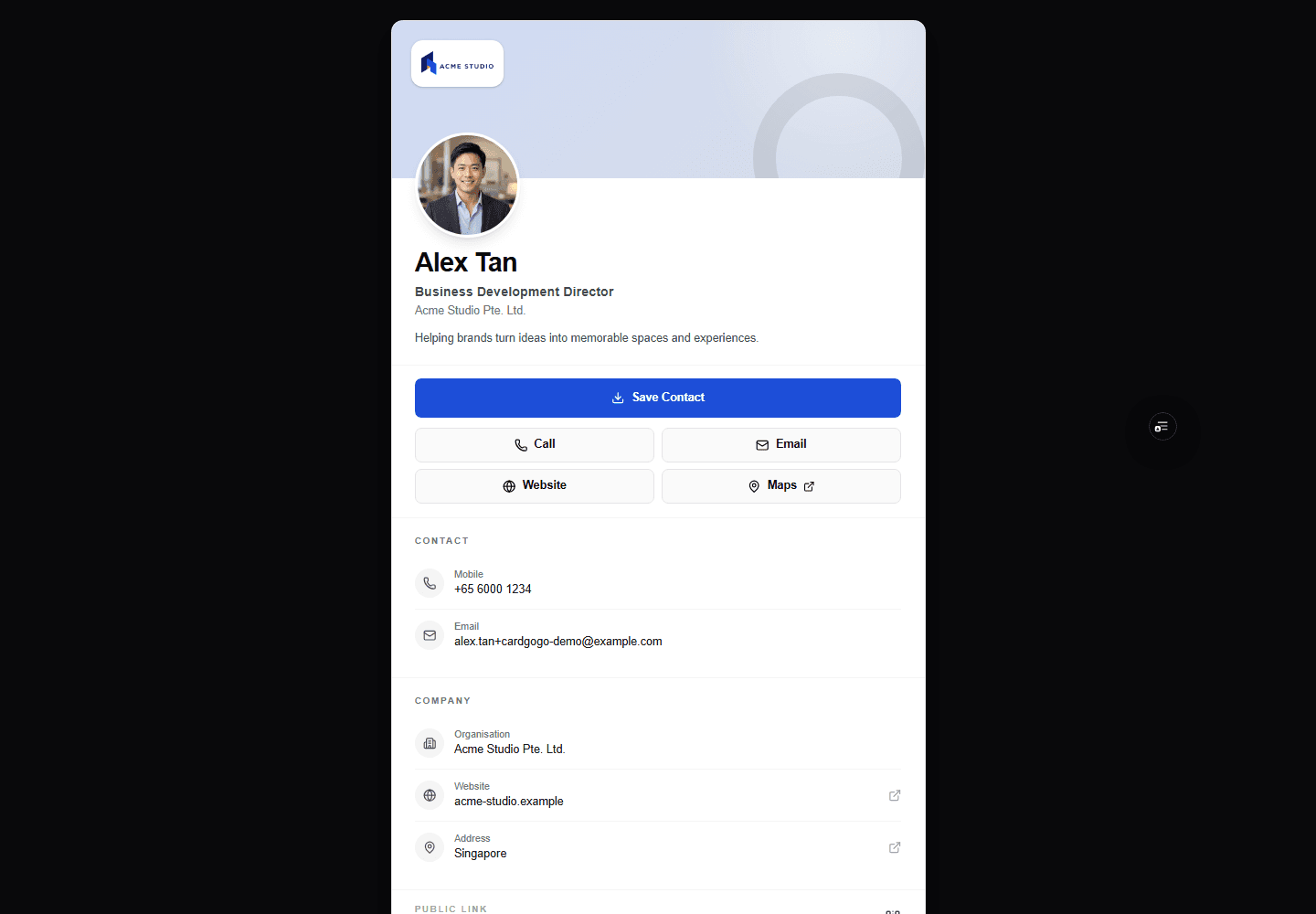
Saving the contact is an explicit recipient action. - 4
Step 4 of 4
Open the downloaded contact file
Open the downloaded .vcf file and follow your browser, operating system or contacts app prompts to add it. CardGoGo provides the file; your device controls the final import experience.
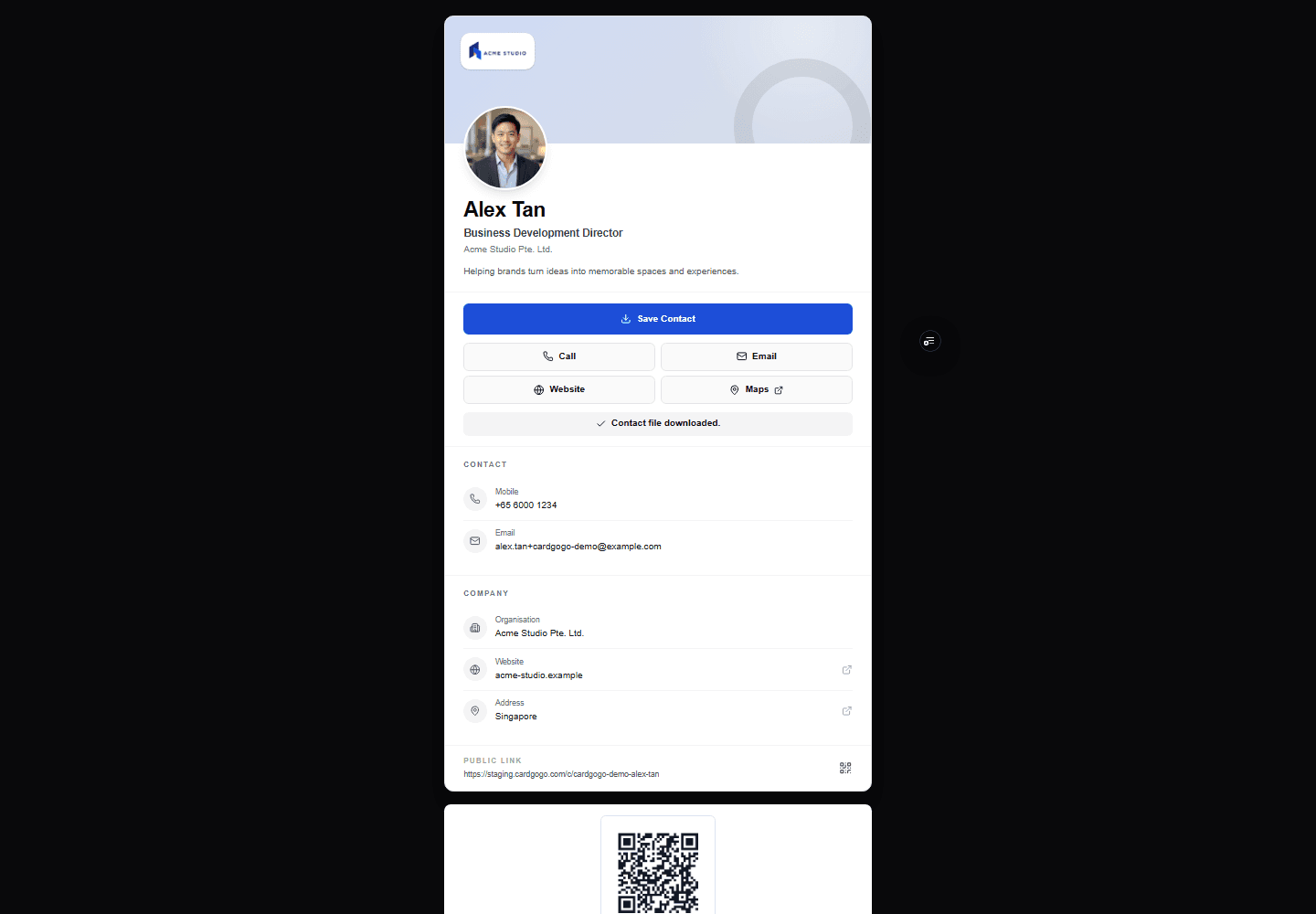
Open the downloaded vCard and complete the prompts on your device.
Quick answers
Frequently asked questions
- Do I need a CardGoGo account to save a contact?
- No. You can open a published public card and download its contact file without signing in.View step
- Does opening or scanning a CardGoGo card automatically save the contact?
- No. You must select Save Contact, then complete the import prompts on your device.View step
- What is a vCard or VCF file?
- It is a standard contact file that compatible phones, computers and contact apps can import.View step
- Why did my browser download a file instead of opening my contacts?
- Browsers and devices handle contact files differently. Open the downloaded .vcf file, then follow the prompts from your operating system or contacts app.View step
- Can I reopen the CardGoGo card later?
- Yes. The downloaded contact includes the card's public CardGoGo link when available, and you can also keep the original shared link.View step
- Will my saved contact update when the card owner changes their details?
- No. An imported contact is a snapshot and does not sync automatically. Reopen the live CardGoGo card to view the owner's currently published details.View step
Learn more
Related CardGoGo resources
Related guides
Share your digital business card
Open a published card, then use Share, copy its public link or show its QR code. Recipients can open the card without signing in and choose Save Contact separately.
Read guideUse your CardGoGo QR code
Publish your card, open its Links & QR controls or preview, then show the QR on screen or download it for printed and digital materials. Scanning opens the public card without requiring a CardGoGo account.
Read guideUse CardGoGo with an NFC card
Publish your CardGoGo card, copy its stable /go link, then use a compatible NFC-writing method to store that URL on a writable NFC card or tag. Test the tag before sharing it; a tap opens the published public card without requiring a CardGoGo account.
Read guide