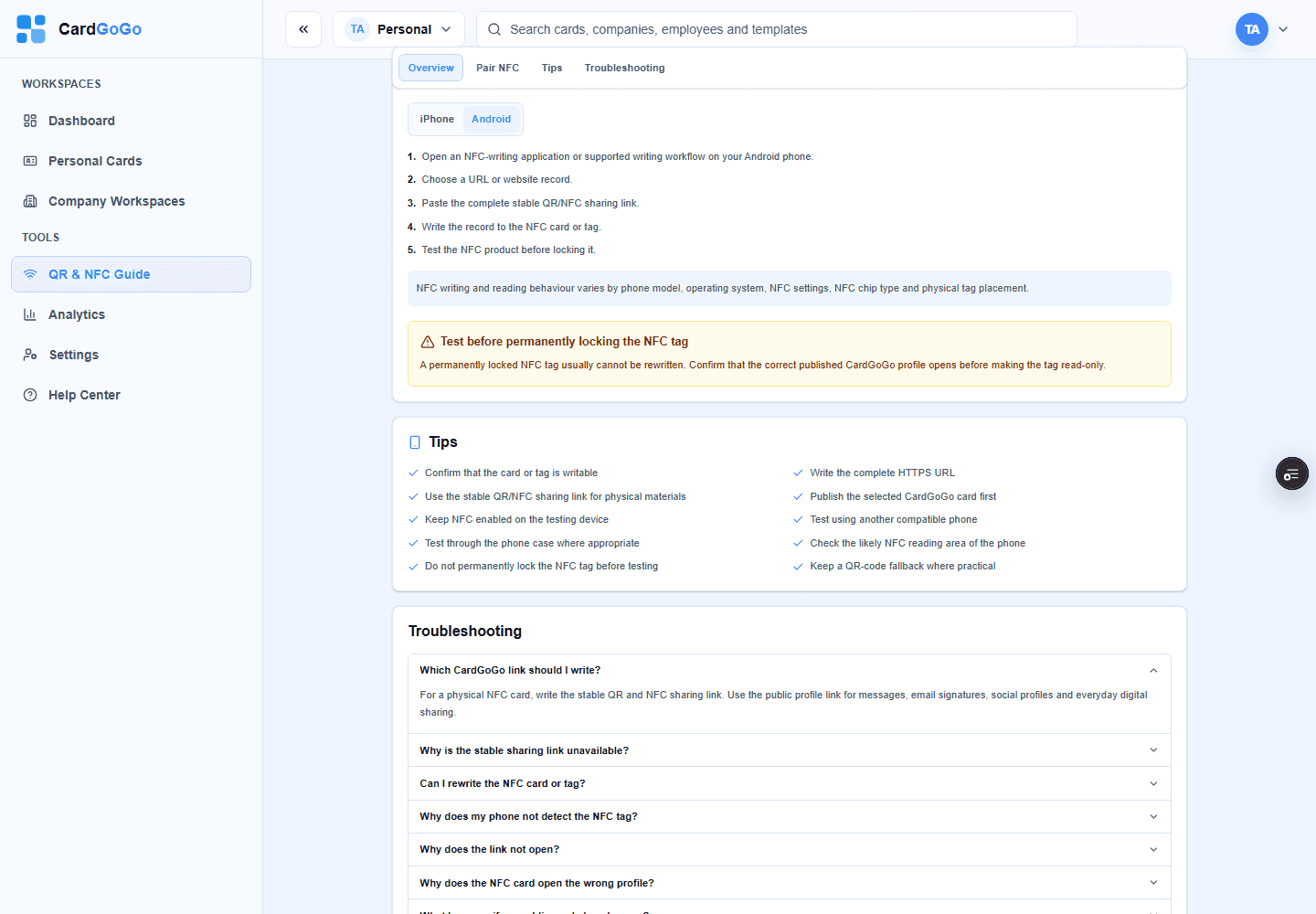
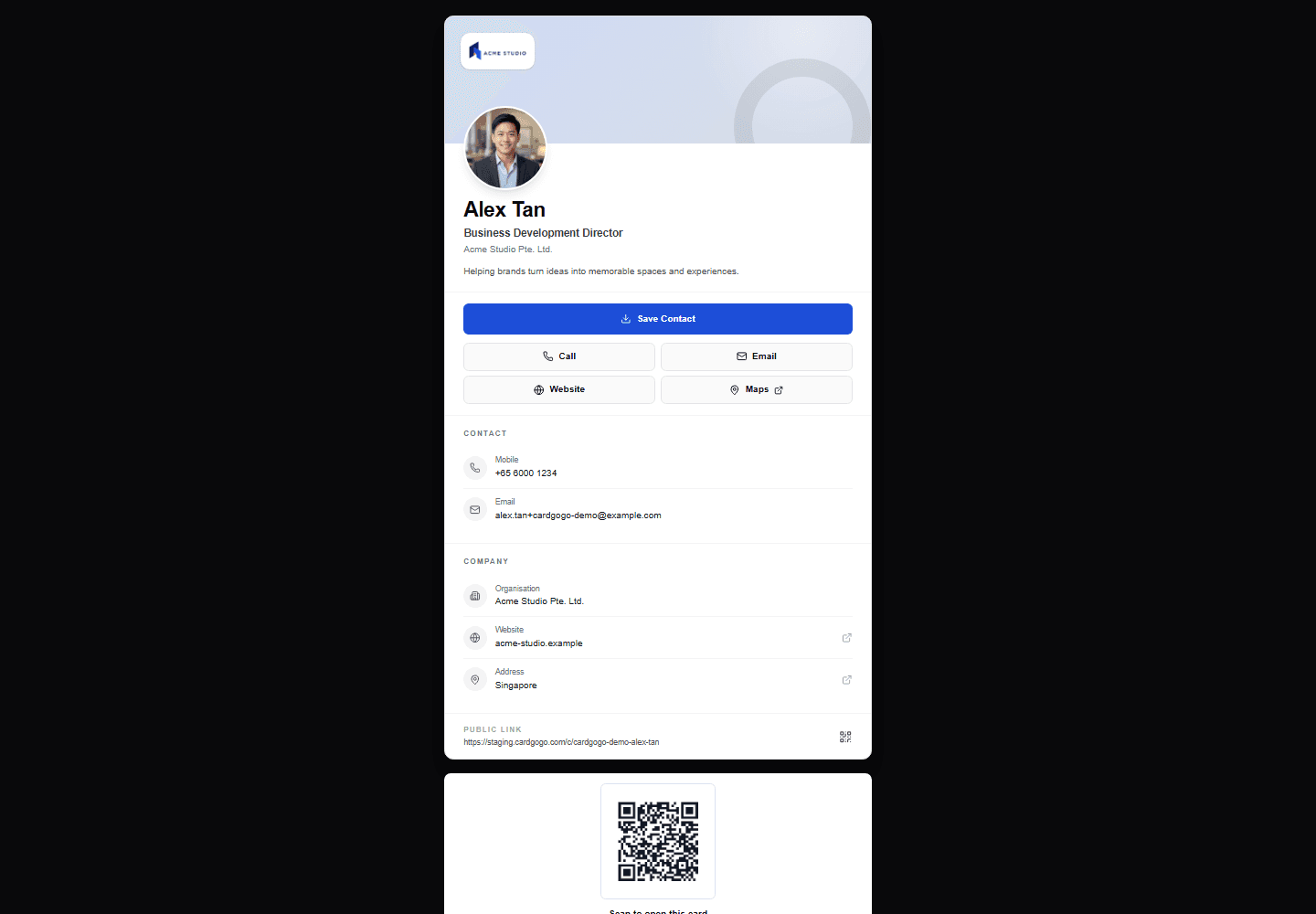
Publish your CardGoGo card, copy its stable /go link, then use a compatible NFC-writing method to store that URL on a writable NFC card or tag. Test the tag before sharing it; a tap opens the published public card without requiring a CardGoGo account.
Prepare CardGoGo's stable link for a compatible NFC product, test it and open the live card
1
Step 1 of 6
Publish your CardGoGo card
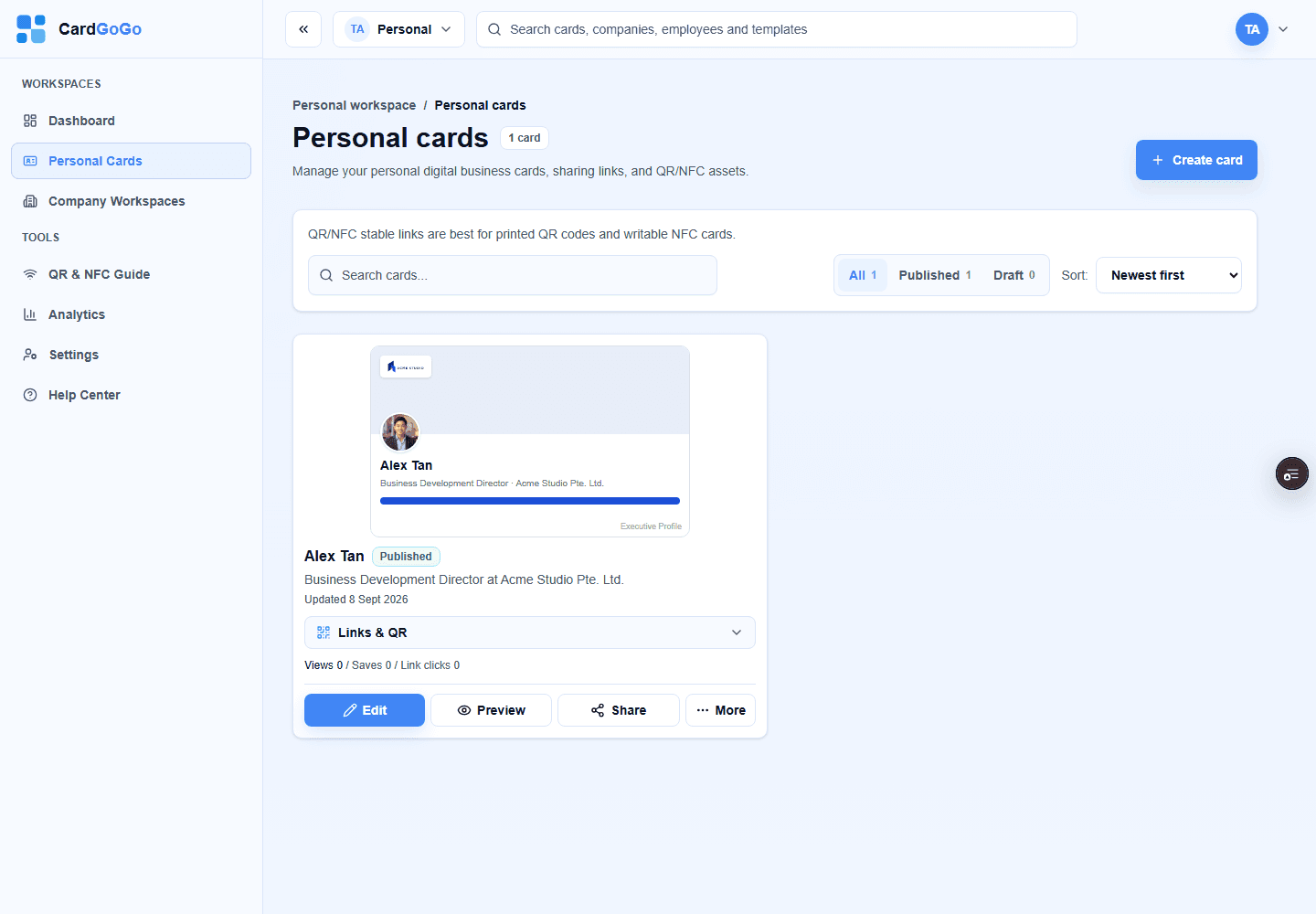
Open Personal Cards and publish the card you want the NFC product to open. A personal card's stable link works only while the card is published. Company owners and admins can use a published staff card from the company workspace's QR & NFC area.
Start with the published card you want people to open.Open your cards
2
Step 2 of 6
Copy the stable CardGoGo link
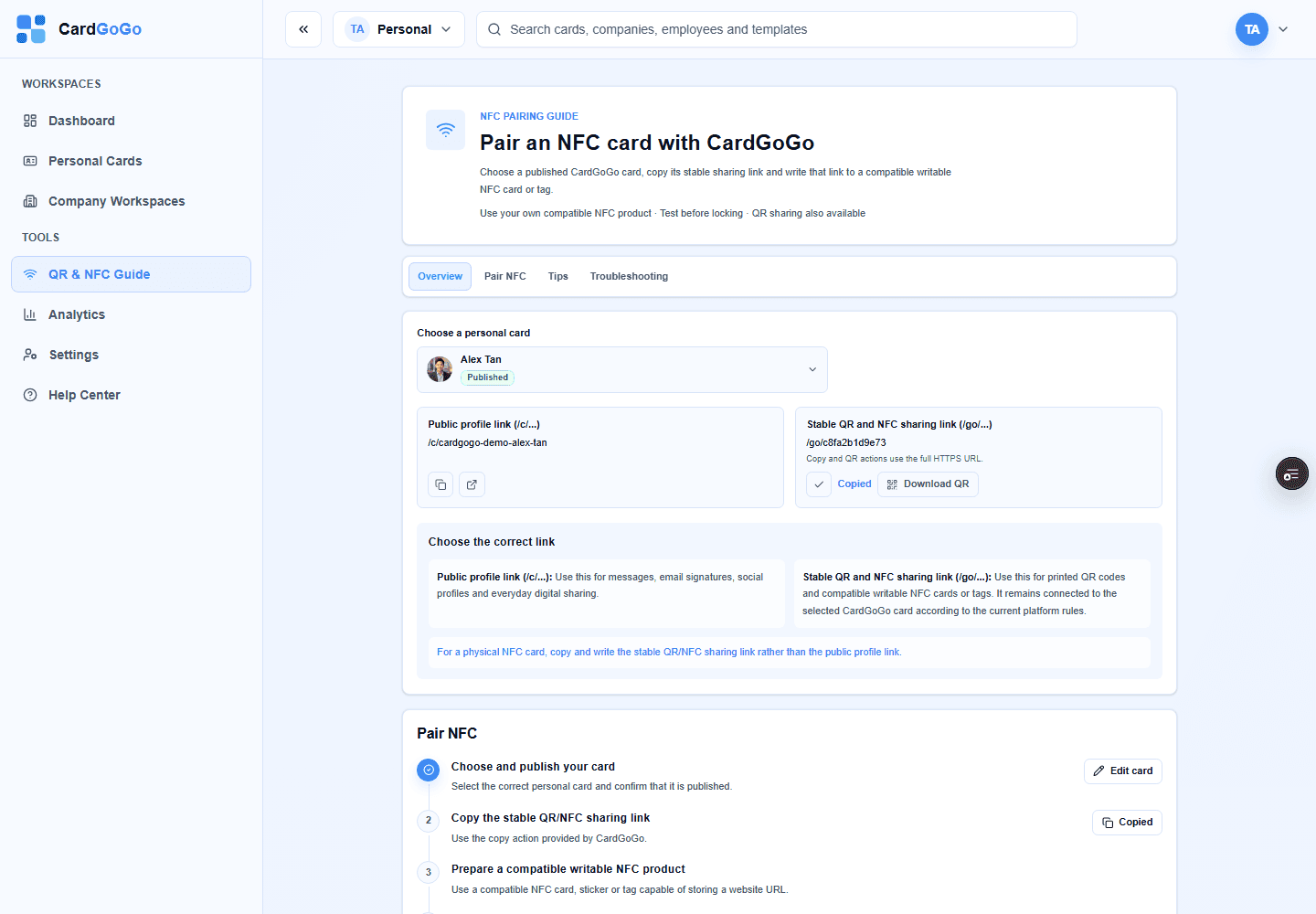
Open the QR & NFC guide, choose the published card and select Copy link. Use the /go link shown here for the physical NFC product: it redirects to the card's current public /c address, so changing the public card link later does not require rewriting the NFC tag.
Obtain a compatible writable NFC card or tag separately. CardGoGo does not supply or program the physical NFC product, and it does not specify one universal card, tag or writing app. Check the product and phone instructions before continuing.
The physical NFC product and its compatibility remain external to CardGoGo.Open the QR & NFC guide
4
Step 4 of 6
Write the link as a URL record
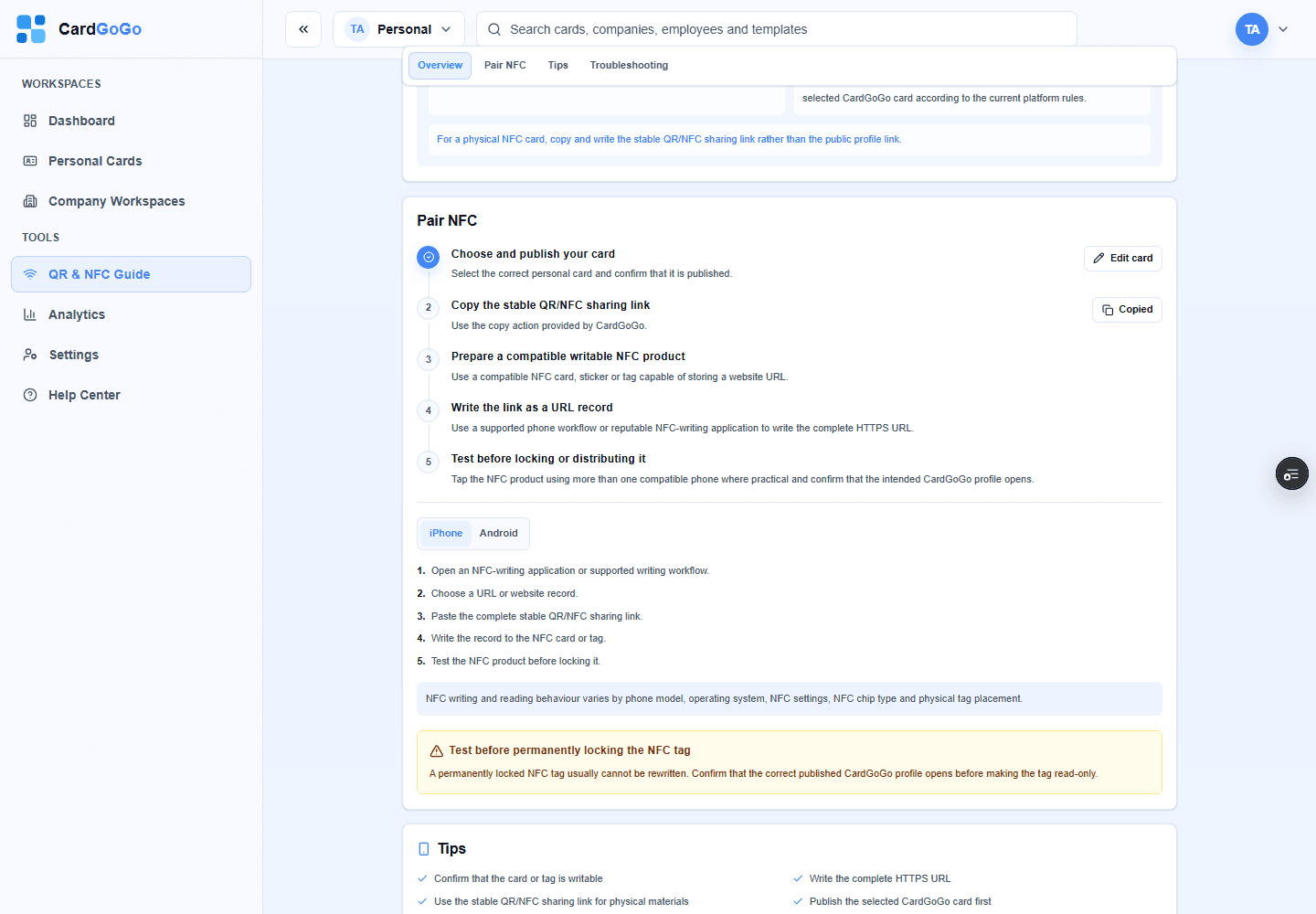
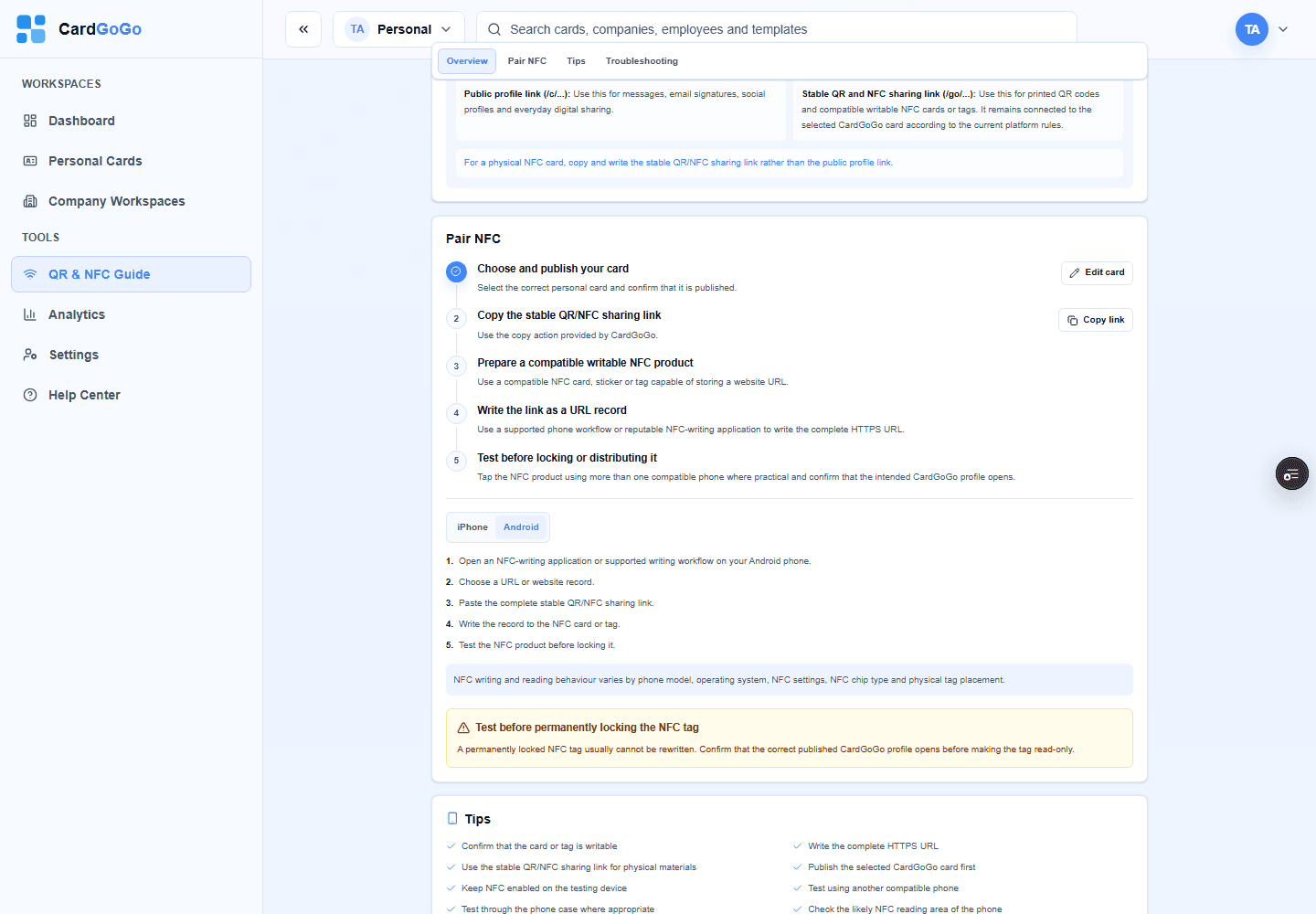
Use a writing method supported by your compatible phone and NFC product, such as a reputable NFC-writing app, to create a URL or URI record containing the complete CardGoGo /go link. CardGoGo itself does not write the chip. Follow the writer and tag manufacturer's instructions, and do not lock the tag yet.
Write the complete stable URL using a compatible external NFC-writing method.Open the QR & NFC guide
5
Step 5 of 6
Test before locking or sharing
Test the programmed NFC product with more than one compatible phone where practical. Confirm that a tap offers or opens the expected CardGoGo public card. Keep the tag writable until testing is complete, because locking is usually permanent; retain the QR code as a fallback.
When a compatible phone detects the NFC product, the phone can offer or open the stable link, which redirects to the currently published CardGoGo card. The recipient does not need a CardGoGo account. Tapping does not save contact details automatically; Save Contact remains a separate action.
A successful tap reaches the live public card; saving the contact is optional and separate.
Quick answers
Frequently asked questions
Does CardGoGo provide the physical NFC card?
No. CardGoGo provides the digital card, stable sharing destination and setup guidance. Obtain a compatible writable NFC card or tag separately.View step
Does CardGoGo program the NFC chip for me?
No. Use a writing method supported by your phone and NFC product, such as a reputable NFC-writing app, and follow the writer and tag manufacturer's instructions.View step
What link should I write to the NFC card?
Write the complete stable CardGoGo /go link shown in the QR & NFC guide, not the current public /c address.View step
Does the recipient need a CardGoGo account?
No. A recipient can open a currently published public card without signing in.View step
Why is my phone not detecting the NFC card?
Confirm that the phone and tag are NFC-compatible, NFC is enabled where required, and you are holding the tag near the phone's NFC reader area. Remove thick or metal-obstructing cases where appropriate, then test another compatible phone or use the QR fallback.View step
Can I change my digital card later without reprogramming the NFC card?
Yes. Keep the stable /go link on the NFC card. It redirects to the card's current public /c address, so normal content or public-link changes do not require rewriting the tag while the card remains published.View step
Does tapping the NFC card automatically save the contact?
No. A tap opens the published public card. The recipient must select Save Contact and complete their device's import prompts separately.View step
What happens if the CardGoGo card is unpublished or archived?
The stable link resolves only while its target is publicly available. An unpublished personal card, a draft or unpublished staff card, and a staff card in an archived workspace do not open as public cards.View step